How to Connect TikTok Pixel to Shopify in 2026: A Step-by-Step Guide
Master the TikTok Shopify integration 2026. Follow our step-by-step tutorial to connect your TikTok Pixel, set up Ads Manager, and automate ops with Stormy AI.
In 2026, the success of your ecommerce brand lives or dies by the quality of your data. As privacy regulations tighten and AI-driven bidding becomes the industry standard, simply ‘running ads’ is no longer enough. You need a rock-solid data pipeline that feeds accurate, real-time signals from your store to your ad platforms. This guide provides a comprehensive walkthrough on how to connect TikTok Pixel to Shopify using the latest 2026 interface. Whether you are a solo founder or managing a growing team, setting this up correctly is the first step toward scaling your brand with an AI ecommerce employee like Stormy AI, which can monitor these pixels and optimize your spend in the background.
The Critical Role of the TikTok Pixel in 2026
Before we dive into the technical steps, it is essential to understand why this integration matters. The TikTok Pixel is a snippet of code that allows you to track visitor actions on your Shopify store. Without it, your TikTok Ads Manager is essentially flying blind. In 2026, TikTok’s algorithm relies heavily on Advanced Event Matching to find your ideal customers. By connecting your pixel, you enable TikTok to see who is viewing products, adding items to carts, and completing purchases.
This data is not just for the TikTok algorithm; it is also the lifeblood for your automated operations. For instance, Stormy AI uses these pixel events to cross-reference your actual store revenue against your Meta Ads Manager and Google Ads spend, providing a unified ROAS report without you having to touch a single spreadsheet.
"Data isn't just numbers in 2026; it's the high-octane fuel for your AI agents. A broken pixel means your AI employee is making decisions based on hallucinations rather than sales."
Step 1: Setting Up Your TikTok Business Center
The foundation of your TikTok advertising ecosystem is the TikTok Business Center. This is where you manage your assets, team members, and payment methods. To begin, navigate to the TikTok Business Center landing page. Click on ‘Get Started’ and then ‘Sign Up Now’.
In 2026, TikTok offers a streamlined login process. If you already have a TikTok account for your brand, choose ‘Sign up with TikTok’. This links your organic presence with your advertising backend, making it easier for Stormy AI to later track your organic-to-paid conversion lift. Follow these sub-steps:
- Verify your identity: Enter your email or phone number and input the 6-digit verification code.
- Enter Business Information: Select ‘I am an advertiser’. You will need to provide your company website URL and industry type.
- Company Details: If you are a solo entrepreneur, use your Shopify store name as your company name. This information is internal and helps TikTok verify your account for faster ad approval.
Once you click ‘Confirm’, you will be redirected to the TikTok Ads Manager. Initially, TikTok might try to force you into a simplified campaign creator. Always click ‘Switch to Full Version’ to ensure you have access to the advanced event tracking tools required for a professional setup.
Step 2: Installing the Official TikTok App on Shopify
Learn how to find and install the official TikTok app within your Shopify dashboard.
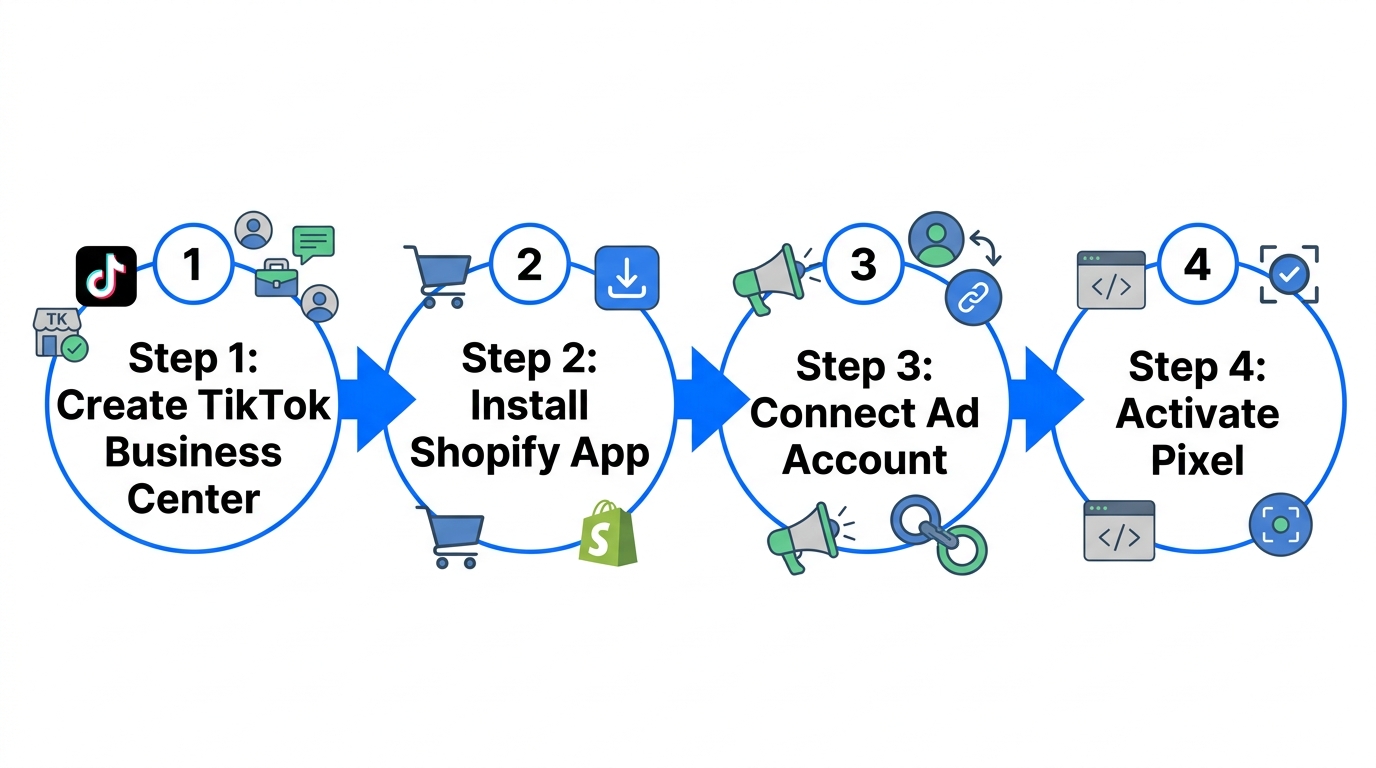
Now that your Business Center is ready, it is time to bridge the gap to your store. Head over to your Shopify admin dashboard. In 2026, the TikTok Shopify integration is handled through a dedicated sales channel app.
- Go to Settings > Apps and sales channels.
- Click on the Shopify App Store button.
- Search for ‘TikTok’ and select the official app developed by TikTok Inc.
- Click ‘Install’. Note that this app is free to use, though you will pay for any ad spend you authorize later.
After installation, you will see a ‘Grow your business with TikTok ads’ section. Click ‘Get Started’. Since you already created your Business Center in Step 1, simply click ‘Connect’ next to the TikTok For Business prompt. Your account should appear automatically if you are logged into the same browser.
Step 3: Navigating 'Account Contract Pending'
A common roadblock many merchants face is the ‘Account contract pending’ status inside the Shopify app. This essentially means TikTok is performing a routine check on your brand new Ads Manager account. While this usually resolves within 24 hours, you don't have to just wait around.
To speed up the process, go back to your TikTok Ads Manager and navigate to Payment Settings. Adding a valid payment method (credit card or PayPal) immediately signals to TikTok that you are a legitimate advertiser. This often triggers an automated approval, shortening your wait time from 24 hours to just 2 hours.
If you are still stuck after 24 hours, use the ‘Ads Assistant’ button in the bottom right corner of the Ads Manager to request manual support. Once approved, refresh your Shopify TikTok app page, and the ‘Connect’ button for the Ads Manager will be clickable.
"The 'Account Contract Pending' phase is the perfect time to have your AI employee, Stormy AI, audit your existing product listings for missing images or broken variants."
Step 4: Configuring 'Maximum' Data Sharing
Discover how to enable advanced data sharing settings to optimize your TikTok pixel performance.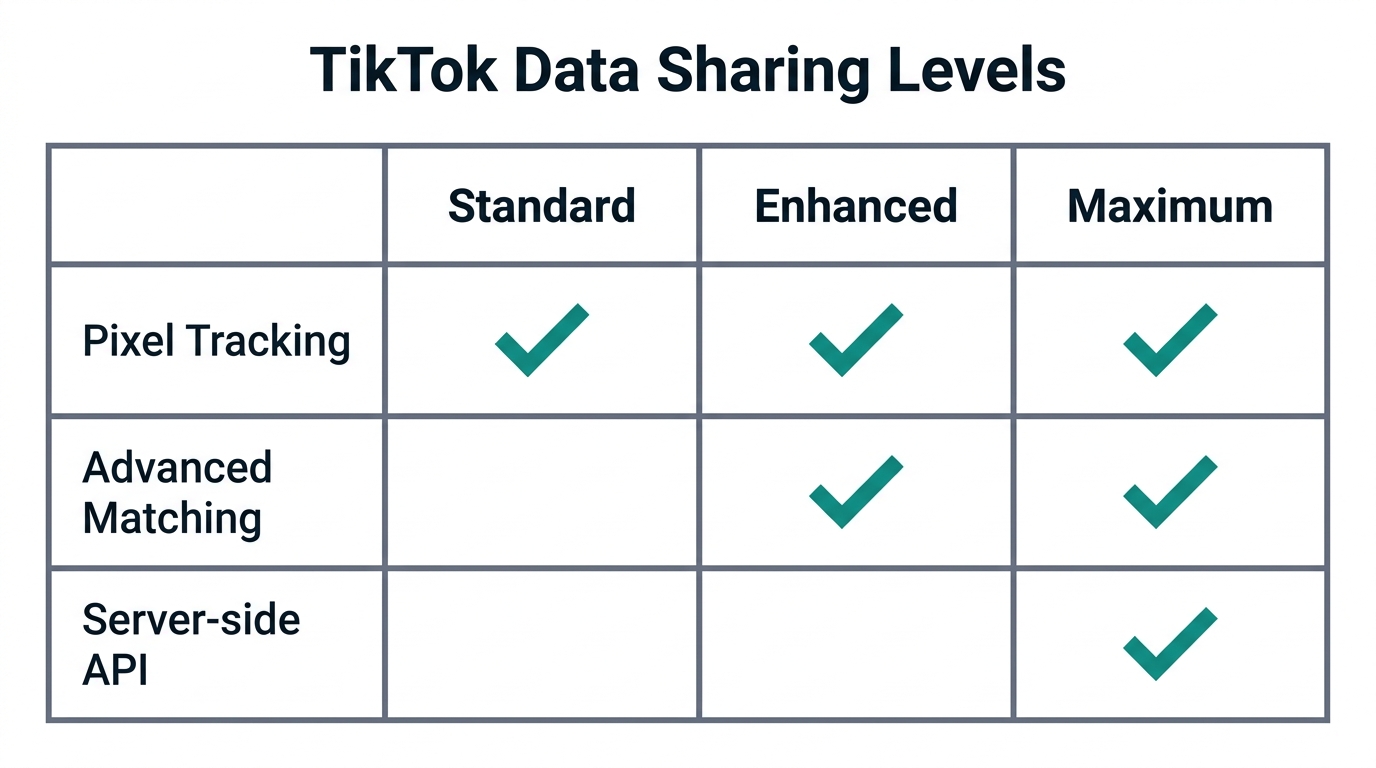
This is the most critical technical step in the TikTok Shopify integration 2026 playbook. When you reach the Data Sharing section in the Shopify TikTok app, you will be presented with three options: Enhanced, Basic, and Maximum. You must choose Maximum.
| Data Level | Tracking Method | Accuracy in 2026 | Best For |
|---|---|---|---|
| Basic | Browser-only Cookies | Low (Blocked by iOS/Browsers) | Testing only |
| Enhanced | Browser + Limited Server-Side | Medium | Small hobby stores |
| Maximum | Full Server-Side API (CAPI) | High (99% Attribution) | Scaling Brands & AI Tools |
By selecting Maximum, you are enabling the TikTok Events API. This sends data directly from Shopify's servers to TikTok, bypassing browser-based ad blockers and iOS tracking limitations. This high-fidelity data is exactly what Stormy AI needs to accurately calculate your CPA (Cost Per Acquisition). When Stormy AI notices your conversion data is 100% synced, it can more confidently suggest budget shifts from underperforming Meta campaigns to winning TikTok ads.
Step 5: Verifying Integration with TikTok Pixel Helper
Use the Chrome extension to verify your pixel is correctly tracking visitor events.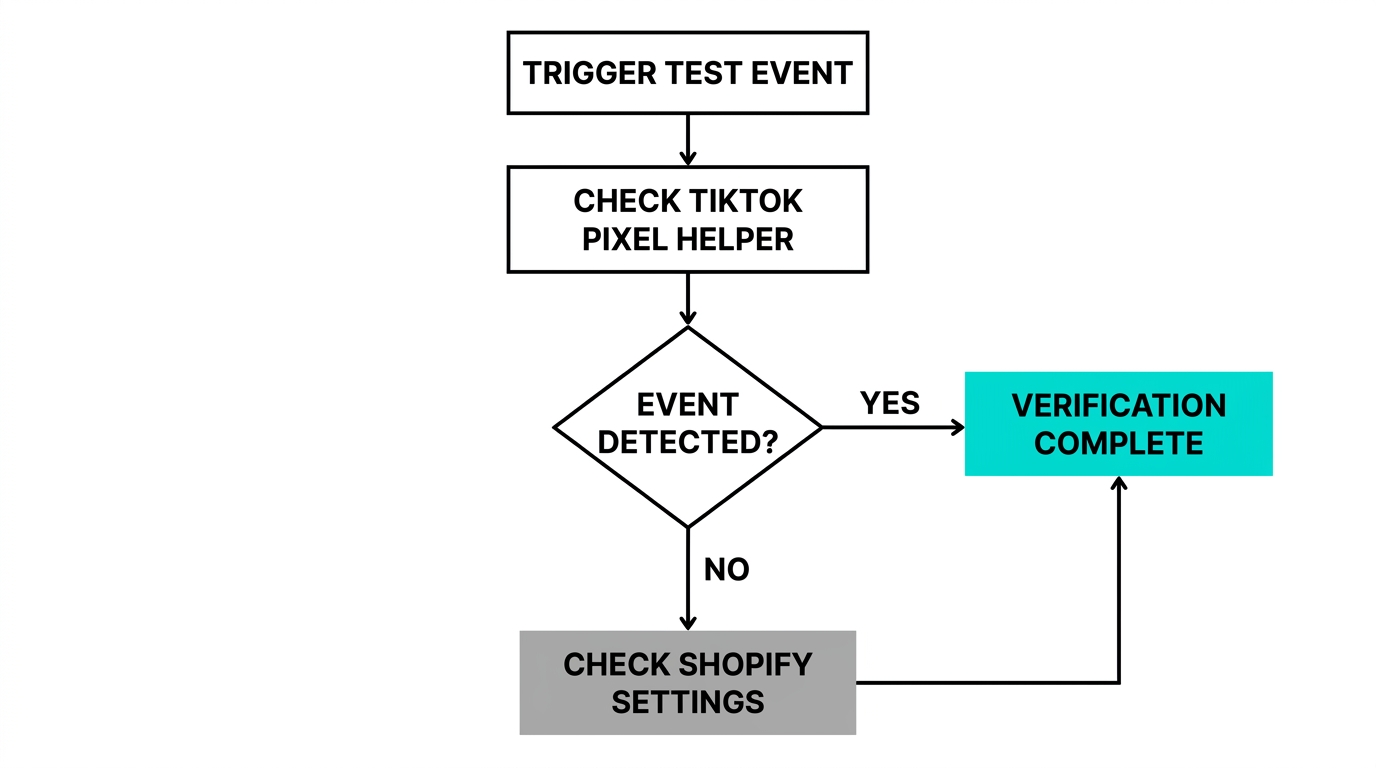
Never assume your pixel is working just because the app says ‘Connected’. You must verify it. The industry standard for this is the TikTok Pixel Helper Chrome extension. Navigate to the Chrome Web Store and search for ‘TikTok Pixel Helper’. Install the extension and pin it to your browser bar.
Now, open your live Shopify store URL. Click the extension icon. You should see a green checkmark and a list of events being fired, such as ‘PageView’. To test further, add a product to your cart. The extension should immediately update to show an ‘AddToCart’ event. This real-time verification ensures that when you start spending money, every click is being accounted for.
Alternatively, you can use the Events Manager inside your TikTok Ads Manager. Click on ‘Data Sources’, select your Shopify pixel, and use the ‘Test Events’ tab. Enter your website URL, and TikTok will show you a live log of every signal it receives from your store. You can find the TikTok Pixel Helper tool easily to complete this step.
Step 6: Automating Your Growth with Stormy AI
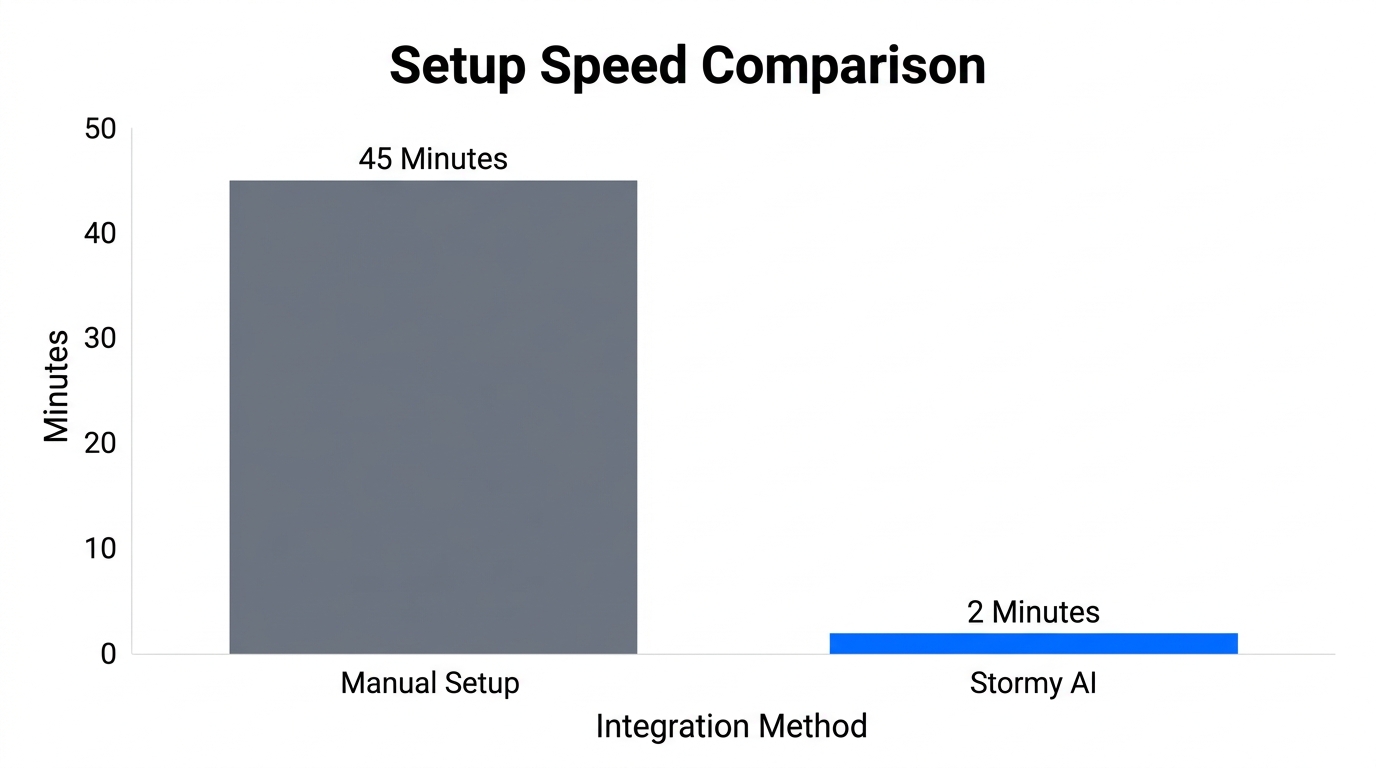
Once your TikTok Ads Manager setup is complete and the pixel is firing, the real work begins: optimization. This is where most founders get overwhelmed. You have to check TikTok, Meta, and Google Ads every morning to see what is working.
Instead of doing this manually, you can ask Stormy AI to handle it. As an AI ecommerce employee, Stormy connects to your Shopify and TikTok accounts to:
- Daily ROAS Pulse: Stormy wakes up every morning, pulls the spend from TikTok, matches it against the pixel-tracked revenue in Shopify, and sends you a summary on Slack or Telegram.
- Inventory Protection: If a TikTok video goes viral and your inventory drops below 10 units, Stormy AI can automatically flag the campaign and draft a restock email to your supplier.
- Creative Audits: Stormy tracks which specific TikTok creatives are driving the highest ‘Add to Cart’ rates (tracked by your new pixel) and suggests which ones to scale.
By offloading the manual monitoring of your TikTok Shopify integration to an AI agent, you can focus on high-level strategy and content creation while Stormy AI keeps the back office running smoothly.
"The goal of a perfect pixel setup isn't just better ads; it's the freedom to let an AI teammate manage your growth while you sleep."
Final Checklist for Success
Connecting your TikTok Pixel to Shopify in 2026 is no longer a ‘set it and forget it’ task; it is about building a robust data foundation. By following this Shopify TikTok app tutorial, you have ensured that your brand is ready to leverage the full power of TikTok’s algorithm and AI automation tools.
To summarize your setup:
- Create a TikTok Business Center and link your brand account.
- Switch to the Full Version of Ads Manager to access advanced tools.
- Install the official TikTok app from the Shopify App Store.
- Choose Maximum Data Sharing to enable the Events API.
- Verify everything using the TikTok Pixel Helper.
- Connect Stormy AI to automate your daily reporting and inventory management.
With your tracking perfected, you are now ready to launch your first campaign and scale your store to new heights in 2026. If you found this TikTok Pixel Helper guide useful, stay tuned for our next deep dive into optimizing TikTok creative for maximum conversion.