It is 2026, and in the high-velocity world of social commerce, a broken data pipeline is the quickest way to burn your marketing budget. If your TikTok Pixel is not working on Shopify, you aren't just losing tracking for a few orders; you are starving your optimization algorithms of the fuel they need to find customers. For founders running lean operations, having an AI ecommerce employee like Stormy AI monitor these signals is critical—but Stormy can only forecast inventory and optimize spend if the data coming from TikTok Shop and Shopify is accurate.
Resolving the 'Account Contract Pending' Error
 5:34
5:34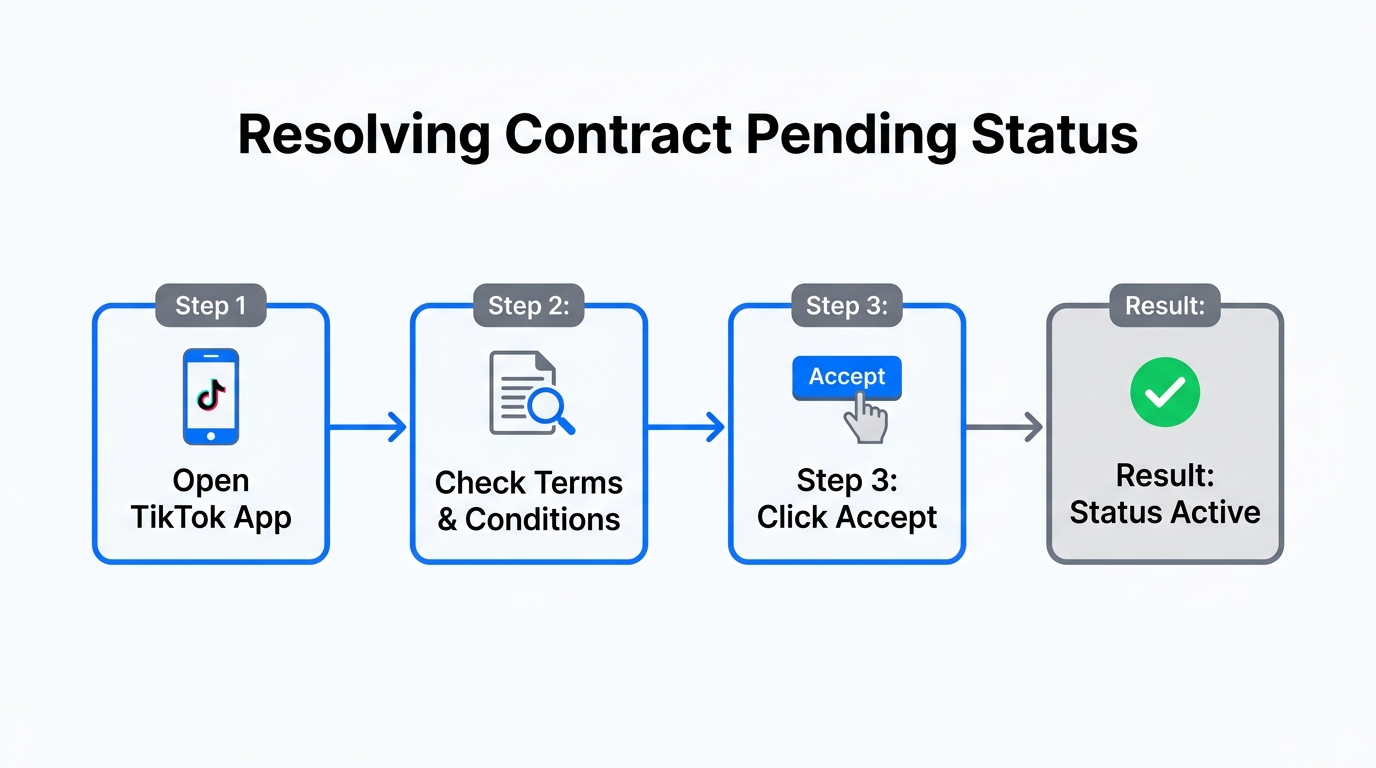
One of the most common roadblocks when setting up the TikTok Ads Manager is the dreaded "Account contract pending" status. This typically appears immediately after you connect your TikTok Business Center to your Shopify store. In 2026, TikTok's automated compliance checks are more stringent than ever to prevent ad fraud.
To accelerate this process, head to your TikTok Ads Manager, navigate to the Ads Assistant, and click on Set Up Payments. By linking a credit card or a verified Stripe account, you signal to TikTok that your business is legitimate. If the status persists beyond 24 hours, use the "Get Support" feature within the Ads Assistant to trigger a manual review.
"A pending contract is often just a missing payment method in disguise. Feed the machine its data, and the doors will open."
Fixing Missing 'Page View' and 'Add to Cart' Events
If your ads are running but your dashboard shows zero conversions, the issue is likely a breakdown in event firing. To verify TikTok Pixel Shopify health, you must use the TikTok Pixel Helper extension. This Chrome tool allows you to see exactly what the pixel is "seeing" in real-time as you navigate your Shopify store.
Step 1: Install the TikTok Pixel Helper
Navigate to the Chrome Web Store and search for the latest version of the TikTok Pixel Helper. Once installed, pin it to your browser bar. Open your Shopify store URL and click the extension icon. You should see a green checkmark next to events like "Page View" and "View Content."
Step 2: Check for Duplicate Pixels
A common mistake is having multiple pixels installed—one via the official TikTok Shopify App and another manually pasted into the theme code. This creates data noise that confuses attribution. Always rely on the official app integration for the most stable 2026 connection.
| Event Name | Trigger Point | Common Failure Reason |
|---|---|---|
| Page View | Global Header | Theme code blocking scripts |
| Add to Cart | Product Page Button | Custom AJAX cart issues |
| Initiate Checkout | Checkout Start | Privacy settings/Cookie banners |
| Complete Payment | Thank You Page | Redirects to external apps |
The Importance of 'Maximum' Data Sharing
6:06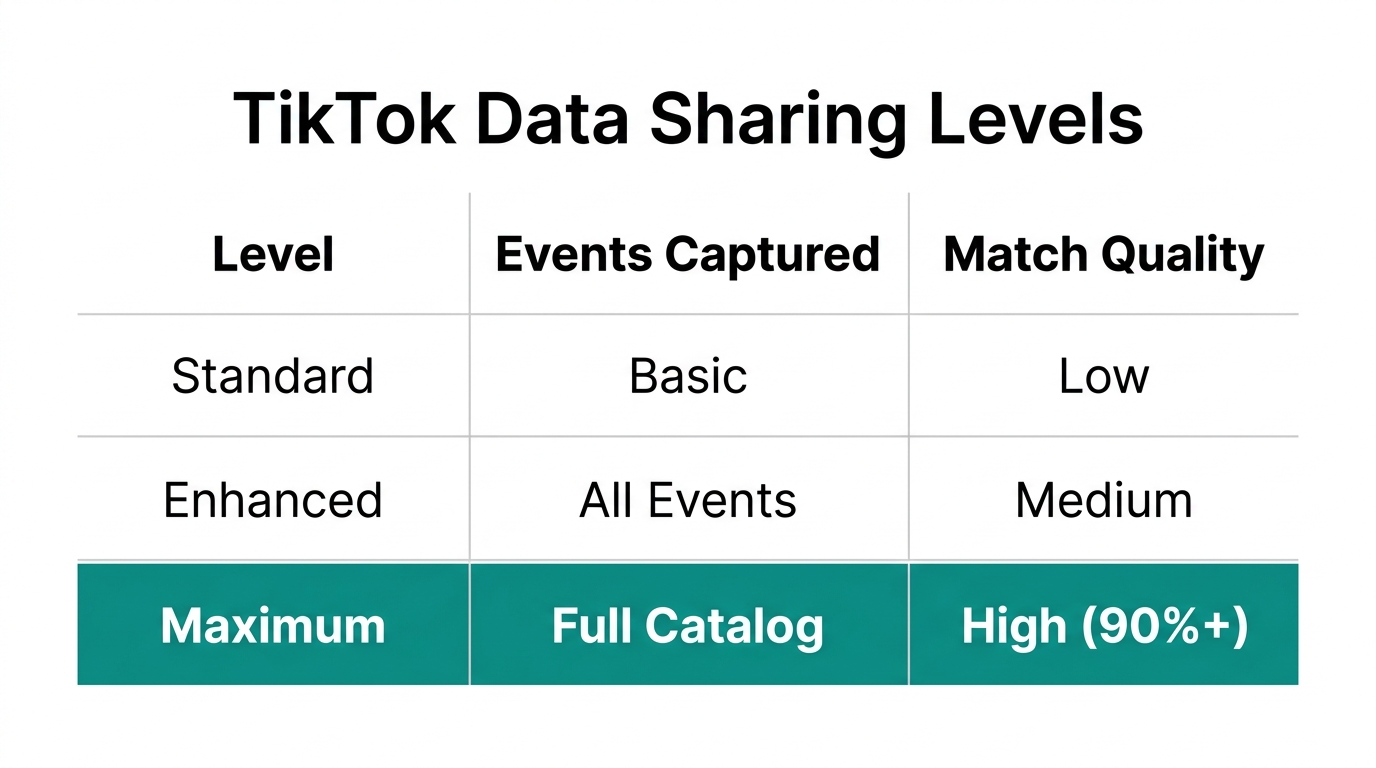
When you verify TikTok Pixel Shopify settings within the Shopify Sales Channel, you are presented with three levels of data sharing: Essential, Enhanced, and Maximum. In 2026, using anything less than 'Maximum' is a mistake. This setting enables server-side API tracking, which bypasses many browser-based ad blockers that plague traditional pixel tracking.
When Stormy AI monitors your ad performance, it relies on the rich metadata provided by the 'Maximum' setting—including customer email hashing and phone numbers—to match conversions accurately. This ensures your ROAS (Return on Ad Spend) is reported correctly, allowing Stormy to flag underperforming campaigns before they waste capital.
Monitoring Event Activity for AI-Driven Ops
7:41Verification doesn't end with a green light in the app. You need to confirm that data is reaching the Events Manager. In your TikTok Ads Manager, navigate to Tools > Events Manager > Data Sources. Select your 'TikTok Pixel for Shopify' and click on the Test Events tab.
This real-time feed is what allows Stormy AI to perform its back-office magic. Stormy can:
- Track SKU-level velocity to alert your suppliers of upcoming stockouts.
- Cross-reference pixel data with Triple Whale or Northbeam for triple-checked attribution.
- Draft personalized follow-up emails via Klaviyo for users who triggered an 'Add to Cart' but didn't finish.
"If your pixel is the eyes of your business, Stormy AI is the brain that actually does something with what it sees."
How to Safely Reset Your TikTok Shopify Connection
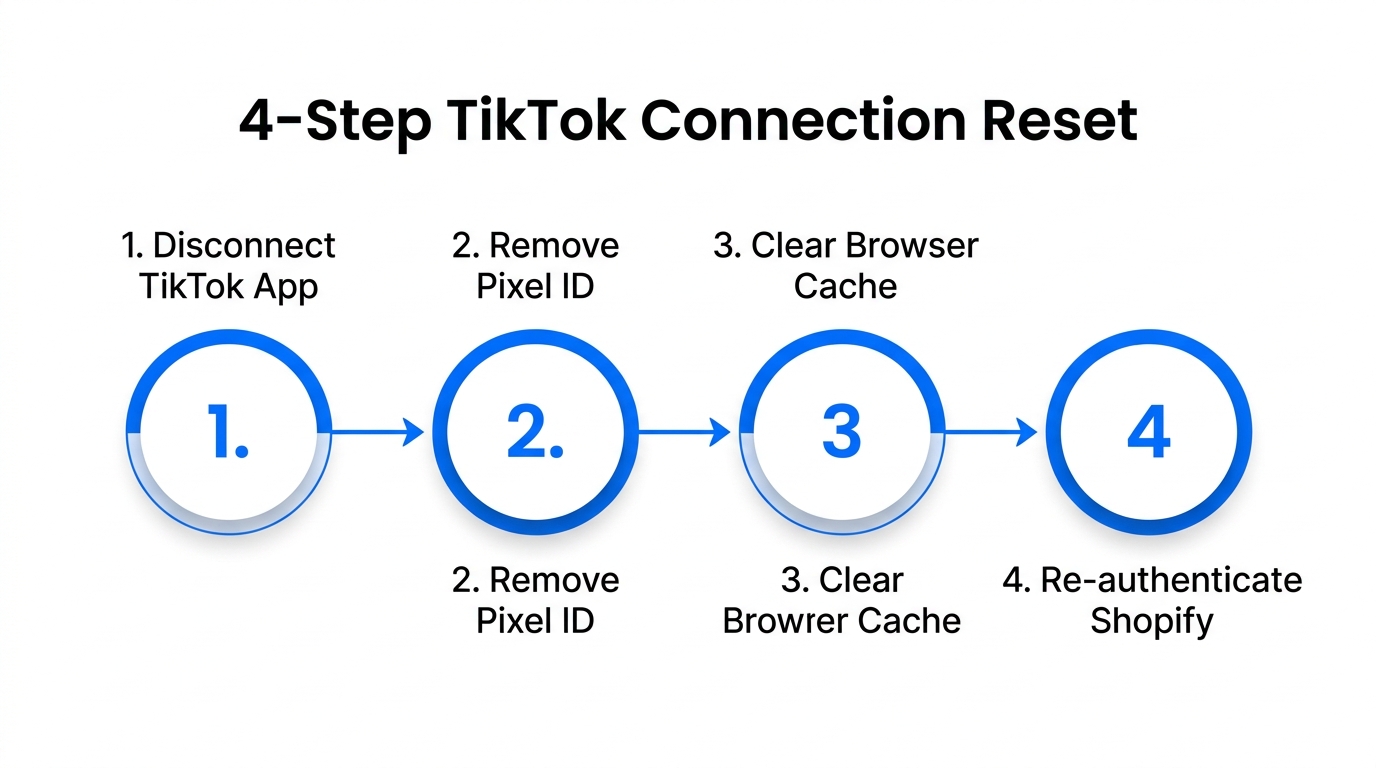
Sometimes, the cleanest fix for Shopify TikTok troubleshooting is a total reset. If you have moved domains, changed your Business Center, or experienced a massive tracking glitch, follow these steps to reset without losing historical data:
- In Shopify, go to Settings > Apps and Sales Channels and open the TikTok app.
- Disconnect the Ads Manager account first, then the Business Center.
- Log out of TikTok on your browser to clear any cached session data.
- Re-connect the Business Center using your primary admin email.
- Ensure the TikTok Ads Manager account matches the one used for your active campaigns.
- Re-select Maximum Data Sharing and confirm the pixel.
After a reset, always re-verify using the TikTok Pixel Helper extension. It is better to spend 20 minutes resetting today than 20 days scaling a campaign that isn't tracking correctly.
Your 2026 Verification Checklist
A functional pixel is the foundation of every successful ecommerce brand. By following this Shopify TikTok troubleshooting playbook, you ensure that every dollar spent on TikTok Ads is accounted for. Remember that accuracy is more important than volume when it comes to training the TikTok algorithm.
Once your tracking is verified and stable, you can offload the boring parts of monitoring to Stormy AI. Whether it is tracking creator affiliate posts, refreshing your ROAS leaderboard, or sending polite follow-ups to suppliers when inventory runs low, Stormy acts as your 24/7 ecommerce teammate. Stop troubleshooting and start scaling by letting AI handle the messy back office.