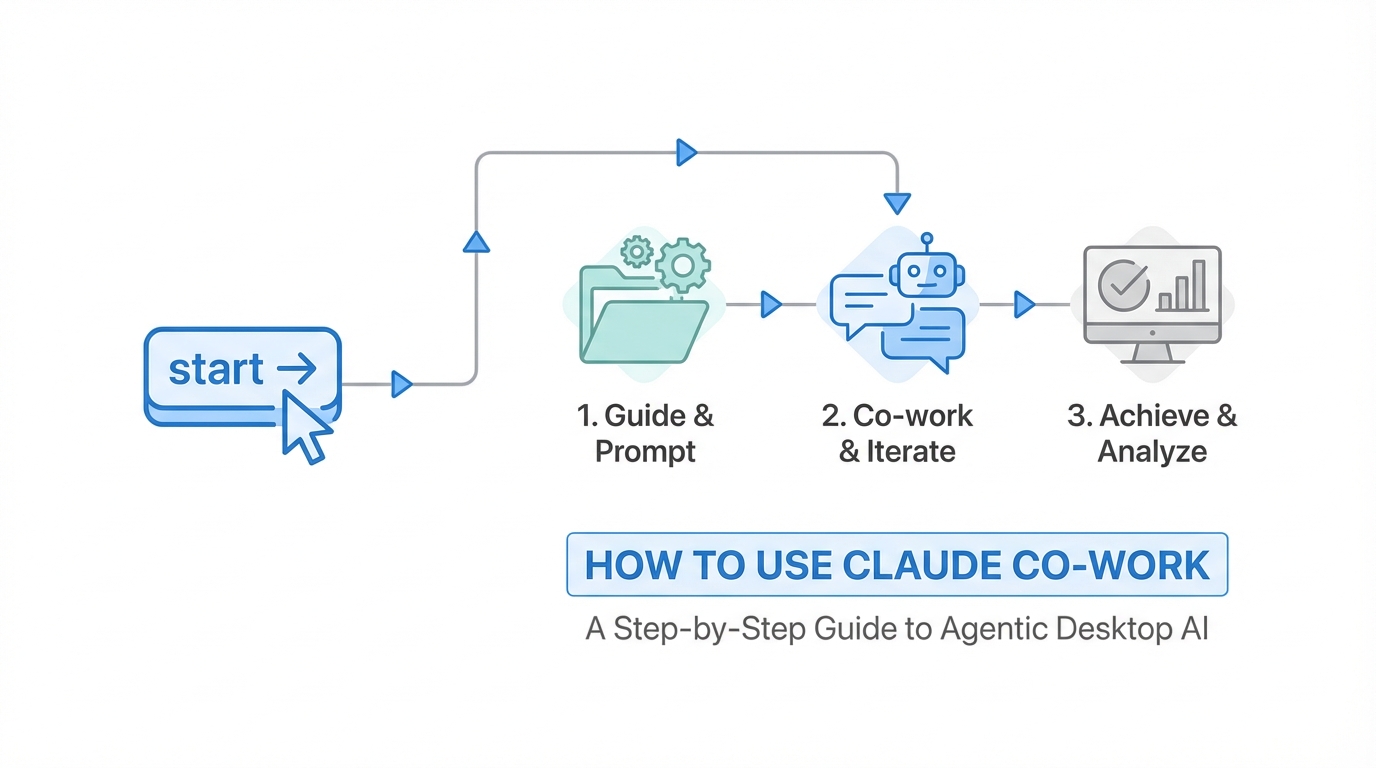
Imagine sitting down at your desk and instead of spending the next hour renaming messy receipt files or manually transferring data into a spreadsheet, you simply ask your computer to do it for you. This is no longer a futuristic dream; it is the reality of agentic AI. With the release of Claude Co-work, users now have access to a powerful digital teammate that doesn't just chat, but takes meaningful action across your local files and web browser. Developed by Anthropic, this tool harnesses the power of the Claude agent to handle the toilsome tasks that usually drain your productivity.
The Difference Between Chat-based AI and Agentic AI
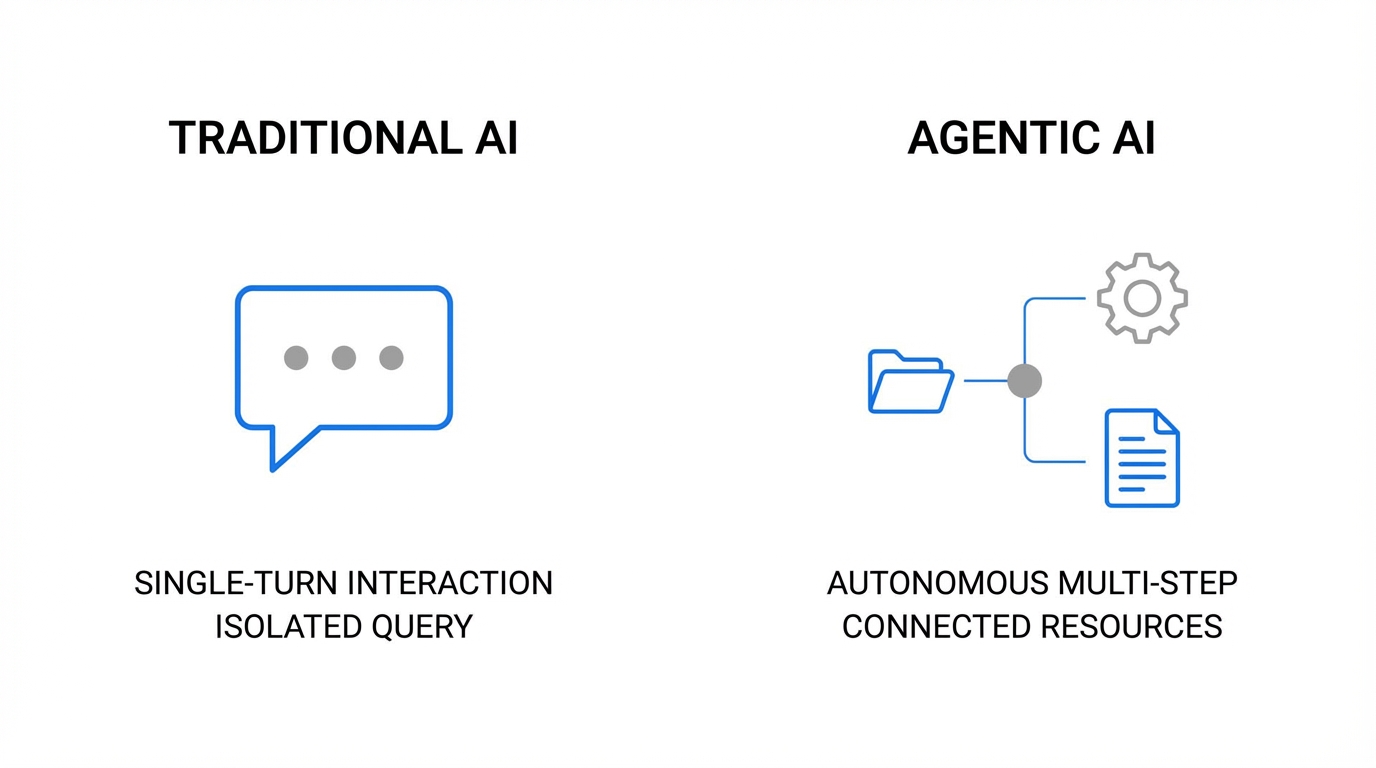
Before diving into the claude desktop app tutorial, it is essential to understand why this tool is a paradigm shift. Most users are familiar with chat-based AI, where you provide a prompt and receive a text-based response. While useful for brainstorming or summarization, chat-based AI is often a passenger in your workflow. Agentic AI, on the other hand, is the driver. It can use tools, interact with your operating system, and perform multi-step operations without constant supervision.
As Boris Paskhover, the developer behind Claude Code, explains, the biggest difference with agents is their ability to take action. Instead of just searching the web or writing text, an agentic tool like Claude Co-work can interact with files on your computer, navigate a browser, and even fill out forms. This capability is built on the Model Context Protocol (MCP), allowing Claude to communicate seamlessly with various external tools and environments.
Step-by-Step: How to Use Claude Co-work
For non-technical users, the technical barrier of terminal-based tools like Claude Code has often been a deterrent. How to use Claude Co-work effectively begins with the user-friendly interface of the Claude desktop app. Currently available for macOS (with Windows support expected soon), the installation process is straightforward and avoids the command line entirely.
Step 1: Download and Installation
First, navigate to the official download page and install the Claude desktop application. Once installed, you will notice three primary tabs: Chat, Co-work, and Code. The Co-work tab is where the magic of agentic AI for beginners happens. It utilizes the same SDK that powers Claude Code but presents it in a simple UI that anyone can navigate.
Step 2: Mounting Folders and Permissions
Security is a cornerstone of the Anthropic Claude Co-work guide. By default, the AI cannot see any of your files. You must explicitly "mount" a folder to give it access. For example, if you have a folder on your desktop labeled "Receipts," you would select that specific folder within the app. This granular control ensures that the AI only operates within the boundaries you set, protecting sensitive data elsewhere on your system.
Step 3: Navigating Chrome Extensions
To fully automate file management with AI, you should also install the Claude Chrome extension. This allows the agent to move beyond your local hard drive and interact with web-based applications like Google Sheets or Gmail. When prompted, you can choose to "Always Allow" specific sites, streamlining the automation of repetitive online tasks.
The Power of Reverse Elicitation
One of the most sophisticated features of Claude Co-work is what researchers call reverse elicitation. In traditional automation, if a tool encounters an ambiguity, it either fails or makes an incorrect assumption. Claude is trained differently; when it is unsure about a task or a specific file, it will stop and ask you for clarification.
For instance, if you ask Claude to rename a folder of receipts by date, but one receipt is missing a clear date stamp, the agent won't guess. It will prompt you: "I found four receipts, but one is missing a date. Should I skip it or use today's date?" This feedback loop builds trust and ensures high accuracy. By embracing this dialogue, you can treat Claude like a smart intern rather than a rigid script.
Playbook: Automating Your Daily File Tasks
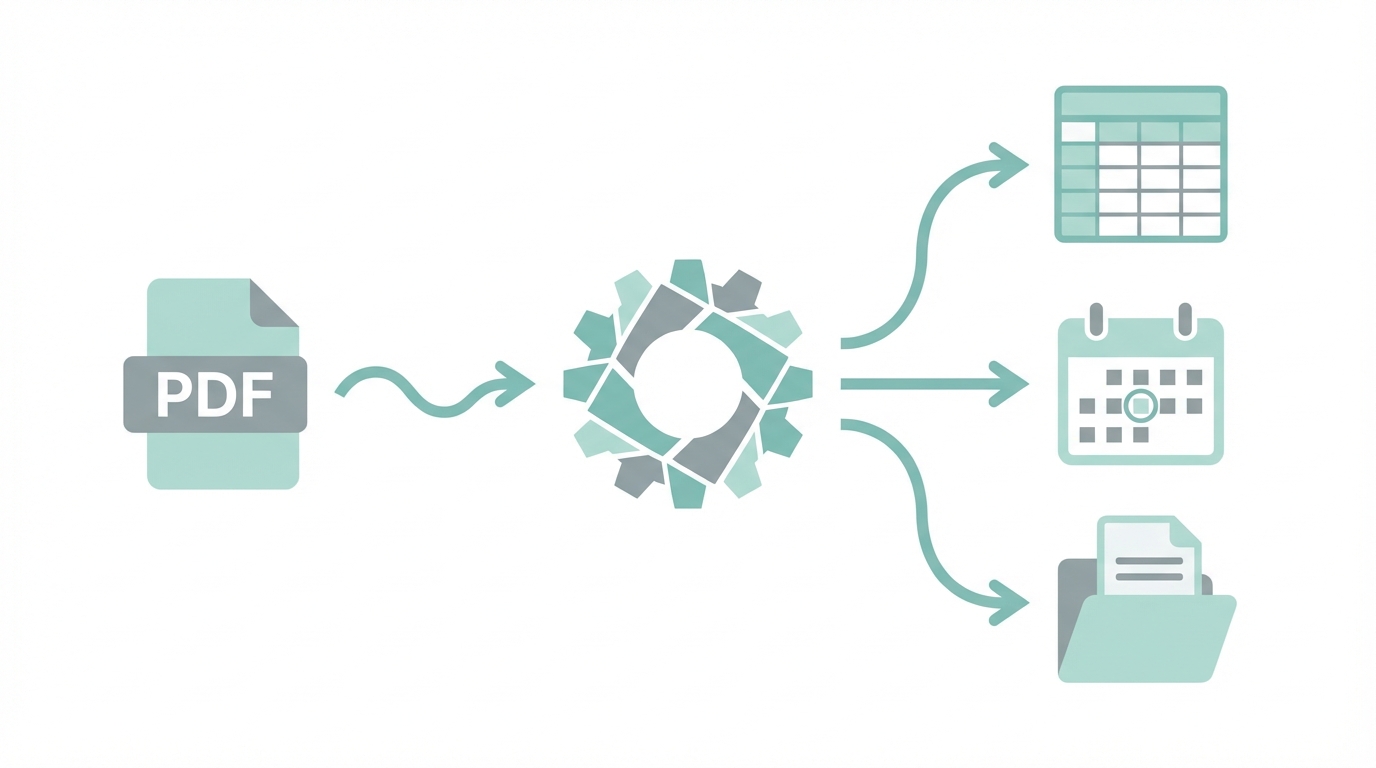
To see the true value of agentic AI for beginners, let’s look at a common workflow: organizing a messy downloads folder. Many of us have folders filled with cryptically named PDFs and images. Using Claude Co-work, you can issue a single command: "Analyze the content of these files and rename them based on the vendor and date."
Claude will then:
- Scan the mounted folder to identify the files.
- Read the text inside each document (even images) to find the relevant data.
- Execute the rename command across your local file system.
- Create a structured log of the changes it made.
Once organized, you can take it a step further. You might tell Claude, "Now, take this data and put it into a Google Sheet." The agent will open your browser, navigate to Google Sheets, create a new document, and type in the information cell by cell. This level of interaction is what makes it a true Claude desktop app tutorial standout feature.
Safety First: The Virtual Machine Sandbox
Entrusting an AI to move files or send emails requires a robust safety architecture. Anthropic has built Claude Co-work with multiple layers of protection. First, the model operates within a virtual machine (VM). This sandbox environment ensures that even if something goes wrong, the impact is isolated from your broader system operations.
Furthermore, the system includes deletion protection. If an agent attempts to delete a file, it triggers a mandatory user prompt. This prevents accidental data loss during complex automation routines. While safety labs continue to study mechanistic interpretability to understand the neurons of AI models, these practical safeguards ensure that automating file management with AI remains a low-risk, high-reward endeavor.
Scaling Your Productivity: The Stormy AI Connection
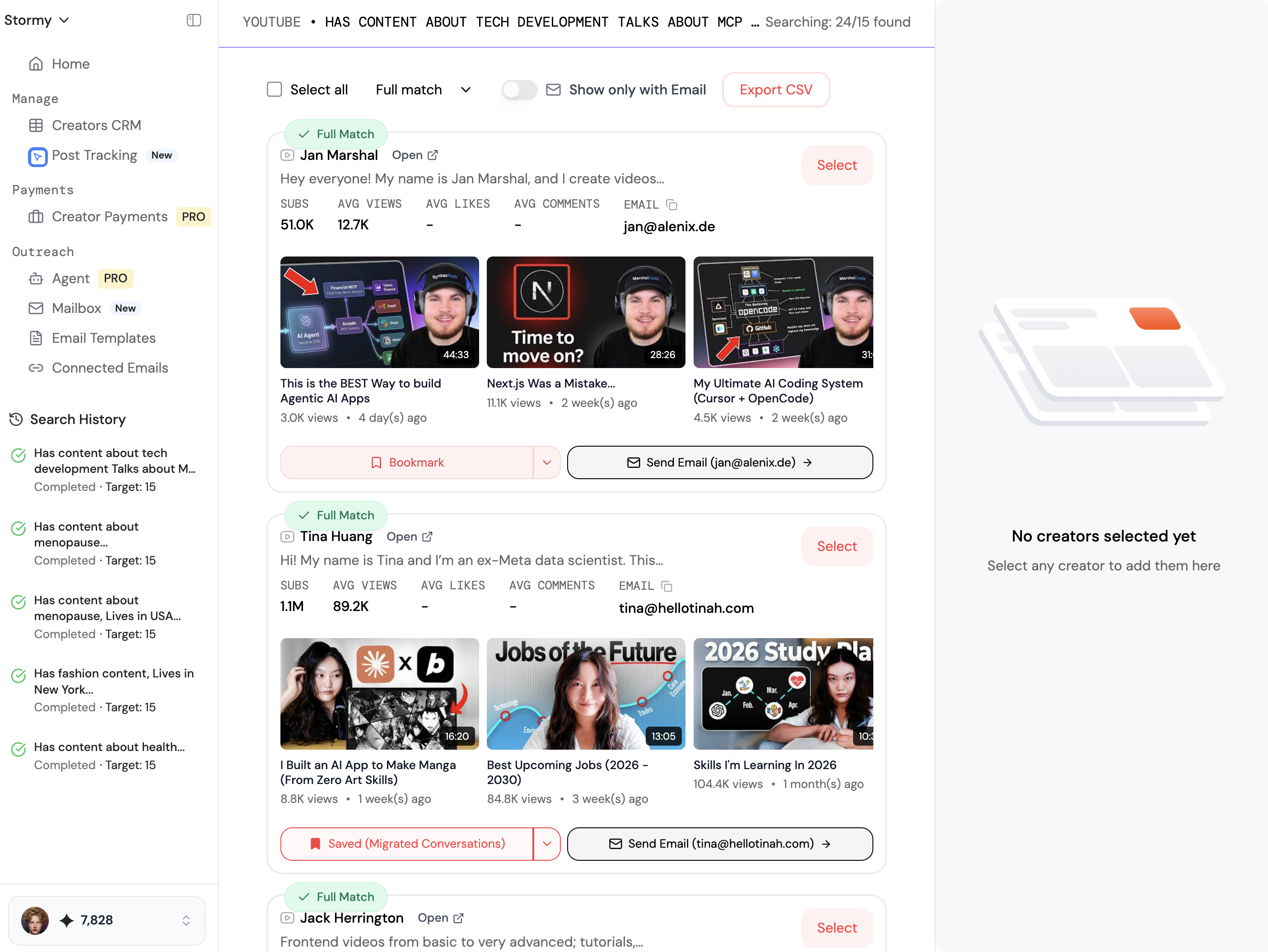
As you become comfortable with digital agents managing your internal files, you may find that the same logic applies to your external growth strategies. For marketing teams and app developers, the manual task of finding the right creators for UGC campaigns is often just as "toilsome" as managing receipts. AI platforms like Stormy AI provide a similar agentic experience for influencer marketing. While Co-work organizes your desktop, Stormy AI can automate the discovery and outreach of UGC creators, helping you scale your campaigns while you focus on high-level creative strategy.
Advanced Tips: Multi-Clauding and Claude.md
For those looking to outperform the average user, Boris recommends a strategy called "Multi-Clauding." Because Claude Co-work can run tasks in the background, you don't have to wait for one task to finish before starting another. You can have five or ten tasks running in parallel—one organizing files, another researching a podcast, and a third drafting emails in Gmail.
Additionally, you should utilize a Claude.md file. This is a simple Markdown file you place in your folders that acts as a "knowledge base" for the agent. If you have specific preferences (e.g., "Always format dates as YYYY-MM-DD"), you can write them in the Claude.md file. Every time Claude enters that folder, it reads your instructions first, ensuring it follows your specific rules without being told every single time.
Conclusion: Embracing the Age of Digital Teammates
The journey from simple chatbots to agentic tools like Claude Co-work represents a fundamental shift in how we interact with technology. By following this how to use Claude Co-work playbook, you can offload the repetitive, low-value tasks that clutter your workday. Whether it is organizing receipts, managing Slack follow-ups, or syncing data across platforms like GitHub, the goal is the same: to become a generalist who "tends to their Claudes" rather than a worker bogged down by manual labor. Start simple, mount a single folder, and see how much time you can win back today.