The Rise of AI Agents: From Chat to Action

Step 1: Setting up the Claude Co-work Environment
Getting started with ai agent workflow automation requires a few initial steps to ensure the environment is secure and functional. Claude Co-work currently operates as a macOS desktop application, with a Windows version expected in the near future. First, you must download the official Claude desktop app and navigate to the Co-work tab. Second, safety is paramount. Claude operates within a sandboxed virtual machine, meaning it cannot access your entire computer by default. You must explicitly mount folders to give the AI access to specific local files. This "opt-in" model ensures that your sensitive data remains protected while allowing the agent to perform tasks like cleaning up file directories or renaming receipts. Third, to enable browser-based tasks, you need to install the Chrome-based browser extension. This serves as the eyes and ears of the AI within the web, allowing it to "see" the DOM (Document Object Model), identify buttons, and input text into fields. Once these permissions are granted, you can begin using the claude co-work skills guide to automate cross-platform workflows.Step 2: The Google Sheets Playbook: CSV to Cloud
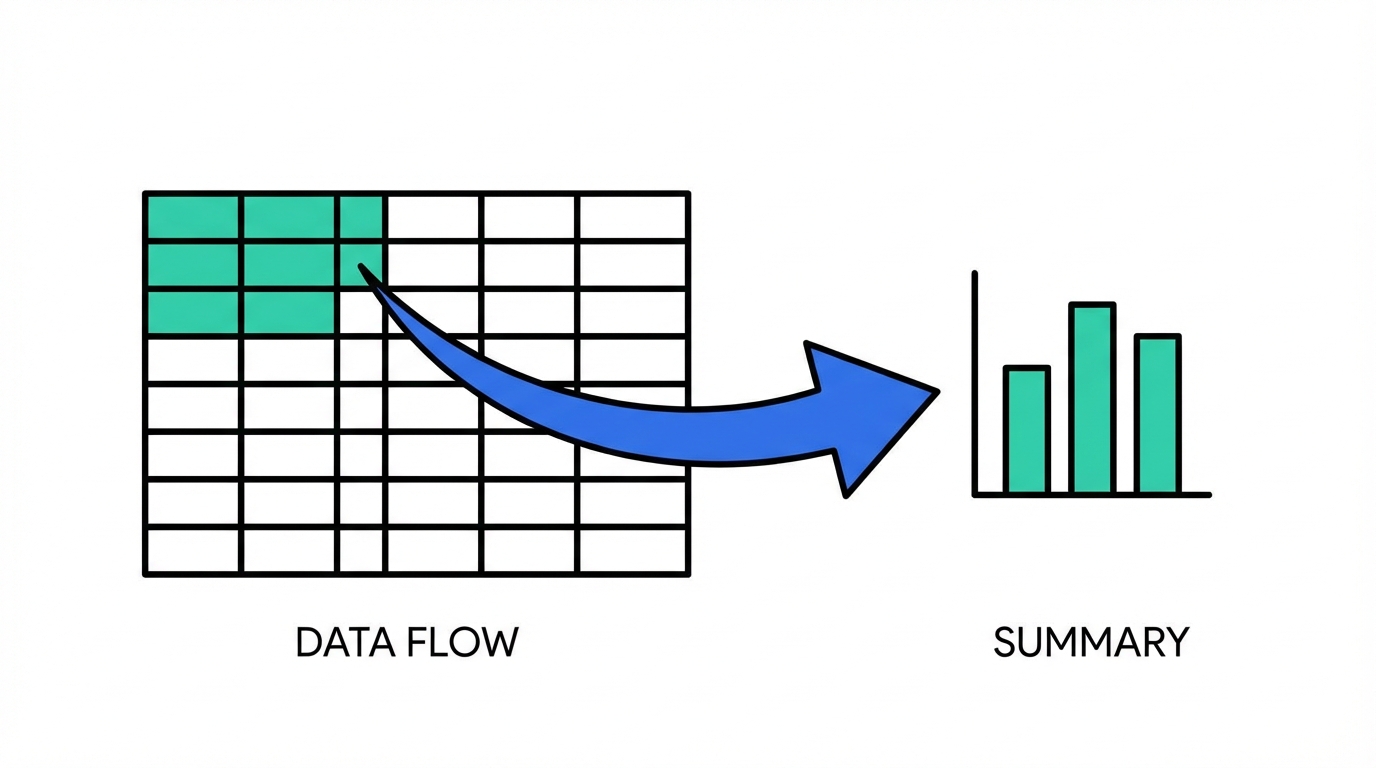
Once the plan is good, the code is good—and the same applies to AI browser automation. Focus on the strategy, and let the agent handle the execution.
Step 3: Communication Automation via Gmail
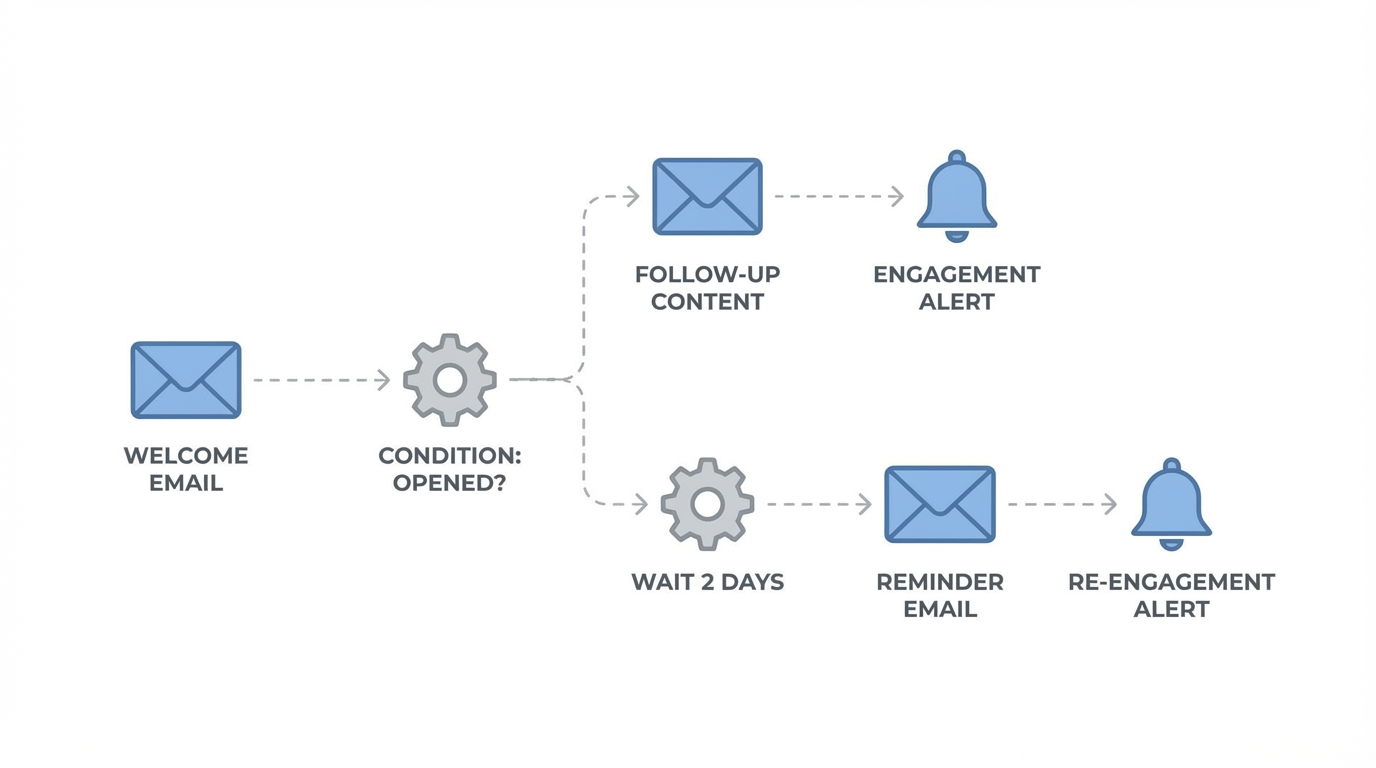
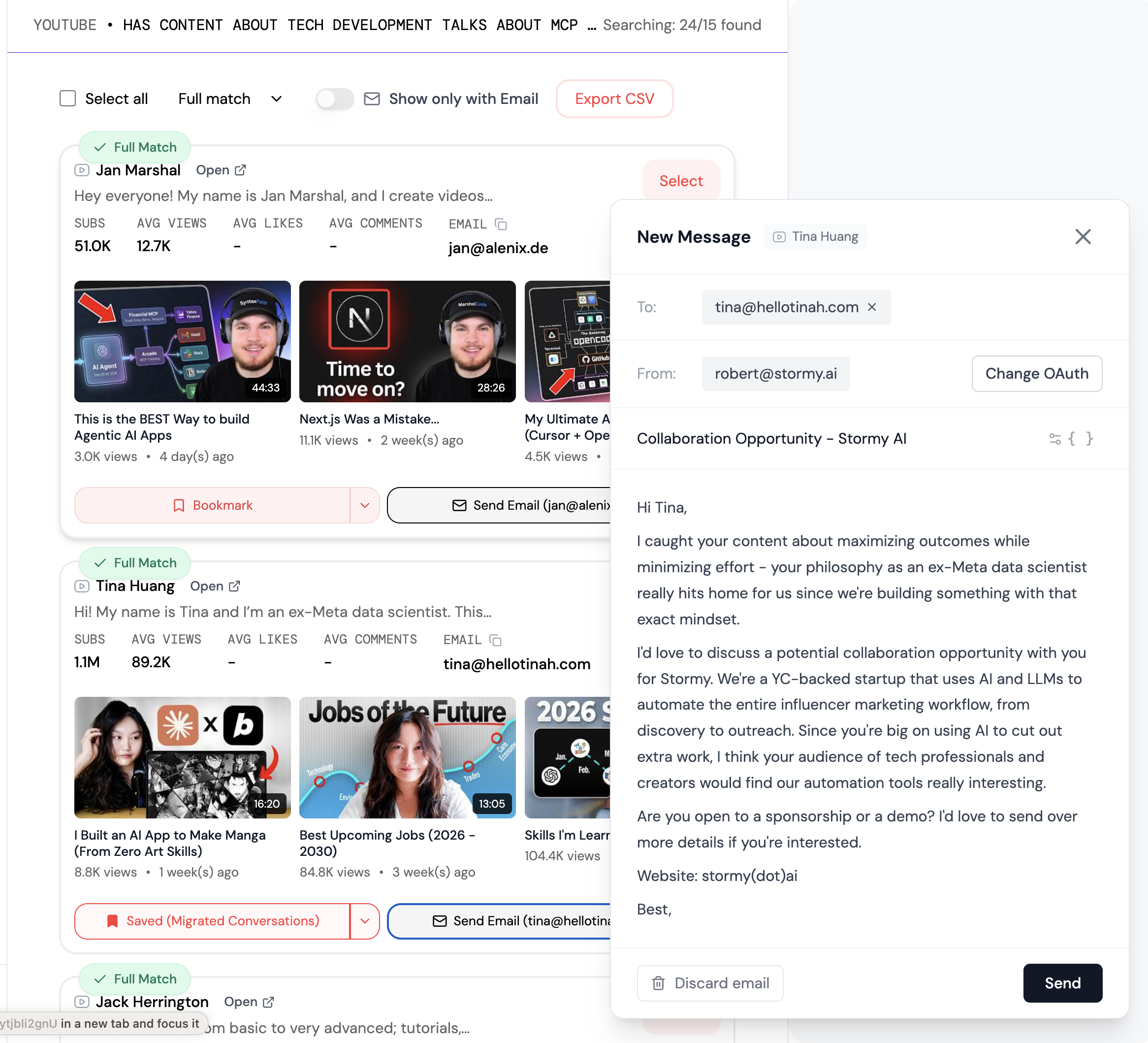 The true power of ai browser automation is realized when the AI can communicate on your behalf. Claude Co-work can interact with Gmail or Outlook by literally "taking the wheel" of your browser. You can prompt Claude to: "Open Gmail, find my last interaction with the accounting department, and send them the spreadsheet we just created." Because the AI can read the screen and interact with contacts, it can navigate your address book to find the correct recipient. It can then draft a contextually relevant email, attach the necessary files, and even send the message upon your approval. For those concerned about safety, you can set the agent to "Draft Only" mode or use "Ask Every Time" permissions for sensitive actions. This level of automation is transformative for influencer marketing or B2B outreach. For instance, while Claude handles your internal administrative reporting, you can use specialized tools like Stormy AI to discover and vet UGC creators for your brand. Integrating ai browser automation into your communication stack allows you to maintain high-touch relationships while reducing the manual labor of drafting and follow-ups. Monitoring these tasks through a Creator CRM or a centralized inbox ensures that nothing falls through the cracks as your automation scales.
Step 4: Using MCPs and Skills for Specialized Software
While Claude is excellent at general browser tasks, some workflows require interaction with highly specialized software like Salesforce, AutoCAD, or complex legacy ERP systems. This is where the claude co-work skills guide becomes essential. Skills are essentially pre-packaged sets of instructions or "tools" that teach Claude how to interact with a specific application's unique interface. Through the Model Context Protocol (MCP), developers can build connectors that allow Claude to read and write data to platforms like Salesforce with native-level understanding. If you work in engineering or design, you can create a skill that allows Claude to manipulate files in AutoCAD or export specific layers to a web dashboard. This effectively turns Claude into a cross-platform bridge, capable of moving data between specialized desktop apps and web-based collaboration tools. The Claude.md file is the key to this consistency. By checking a knowledge base file into your project repository, you can provide the AI with a list of "rules" or "best practices" that it must follow across all sessions. This ensures that every time the AI interacts with your CRM or design software, it does so according to your team's specific standards.Step 5: Troubleshooting Speed with Multi-Clauding
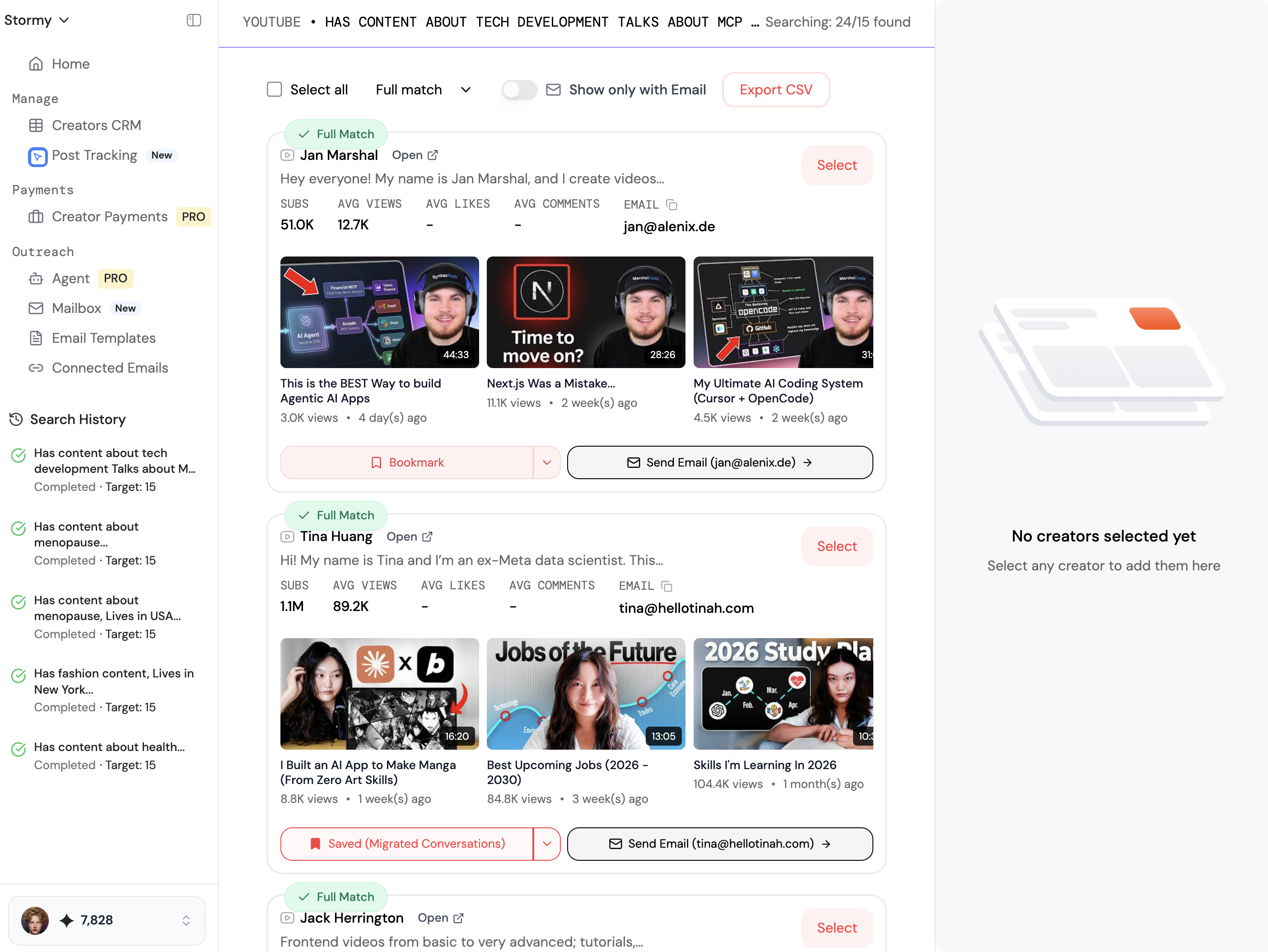 A common critique of early-stage computer use is that the AI can be slow—often taking several seconds to analyze a screenshot before clicking a button. However, the secret to unmatched productivity isn't waiting for a single AI to get faster; it is Multi-Clauding. As Boris Power, a key engineer behind Claude's capabilities, suggests, the most effective users run 5 to 10 Claude sessions in parallel. While one Claude is meticulously formatting a Google Sheet, another can be researching leads on LinkedIn, and a third can be drafting outreach emails in a separate browser tab. This parallelism allows you to bypass the latency of any single task. By treating Claude as a generalist manager of tasks rather than a one-on-one chat partner, you can handle an entire day's worth of administrative work in a single hour of tending to your Claudes. This multi-clauding approach is particularly effective when using high-intelligence models like Claude 3.5 Sonnet. Although these models may be "slower" per token, their superior planning and tool use capabilities mean they complete tasks in fewer steps, ultimately saving both time and costs. For businesses managing large-scale influencer campaigns, using Stormy AI alongside multiple Claude sessions creates a powerful automated marketing engine that handles everything from discovery to final payment.