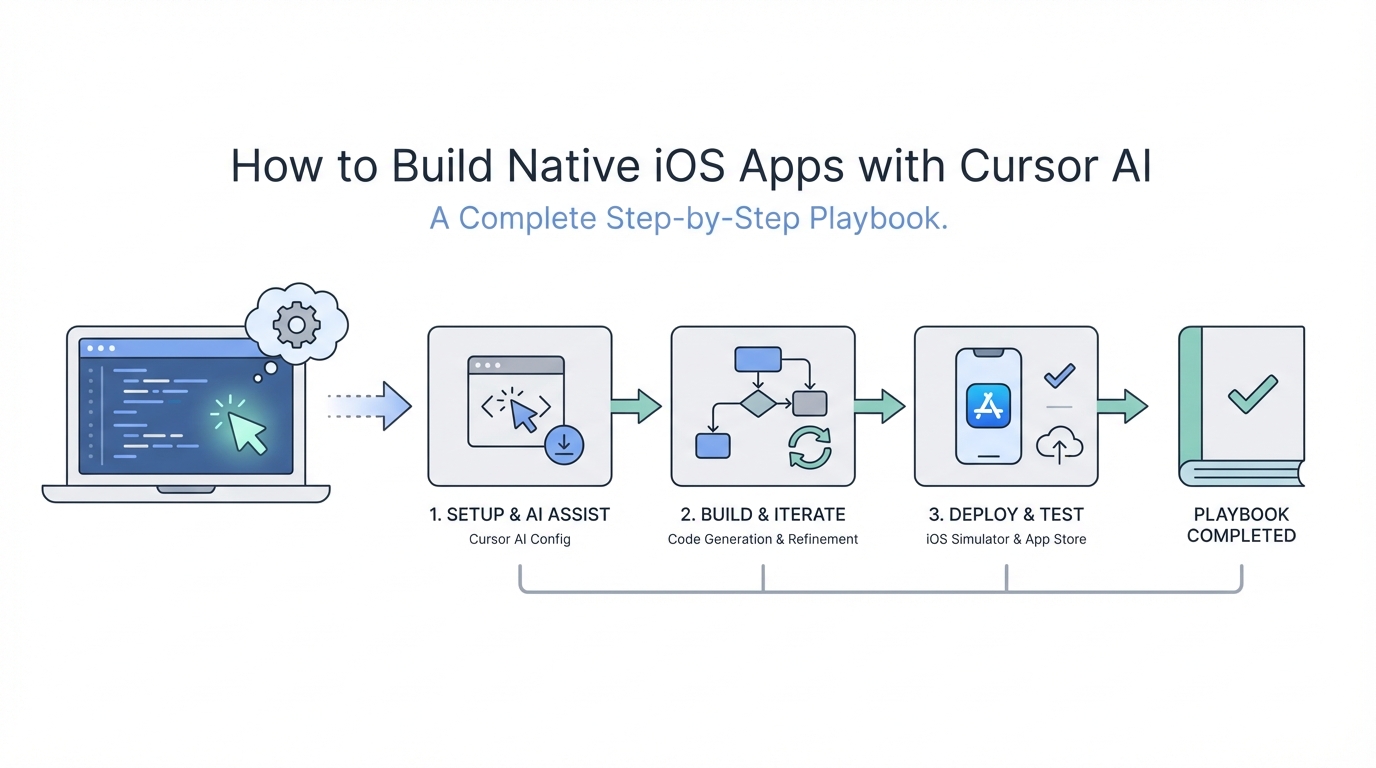
For years, the barrier to entry for native iOS development was a steep mountain of complex Swift syntax, intricate Xcode configurations, and the high cost of specialized engineering talent. However, the rise of AI assisted coding workflows has fundamentally shifted this landscape. It is no longer just the domain of Stanford graduates or ex-Google engineers; today, a single developer can build a portfolio of high-earning, polished mobile applications using the right combination of tools. This guide provides a comprehensive playbook for using Cursor and Claude 3.7 to build native iOS apps that aren't just functional prototypes, but store-ready products capable of generating significant MRR.
Step 1: Setting Up Your Xcode Environment for AI
The biggest mistake developers make when attempting native iOS development with AI is trying to let the Large Language Model (LLM) handle the initial project configuration. Xcode is a notoriously complex Integrated Development Environment (IDE) with internal configurations that don't always translate well to text-based AI prompts. To succeed, you must manually set up your project in Xcode first.
Before you ever open Cursor, initialize your project in Xcode. Choose your app template, set your bundle identifier, and configure your basic deployment targets. Crucially, you must manually handle settings that require UI interactions, such as selecting frameworks, embedding binaries, or enabling specific capabilities like "Outgoing Network Connections." Cursor struggles with these binary settings, and forcing it to try will often break your build path. Once the skeleton is active and you can run a "Hello World" on the simulator, you are ready to move into the AI-powered portion of the workflow.
Step 2: Implementing the 'UI-First' Strategy
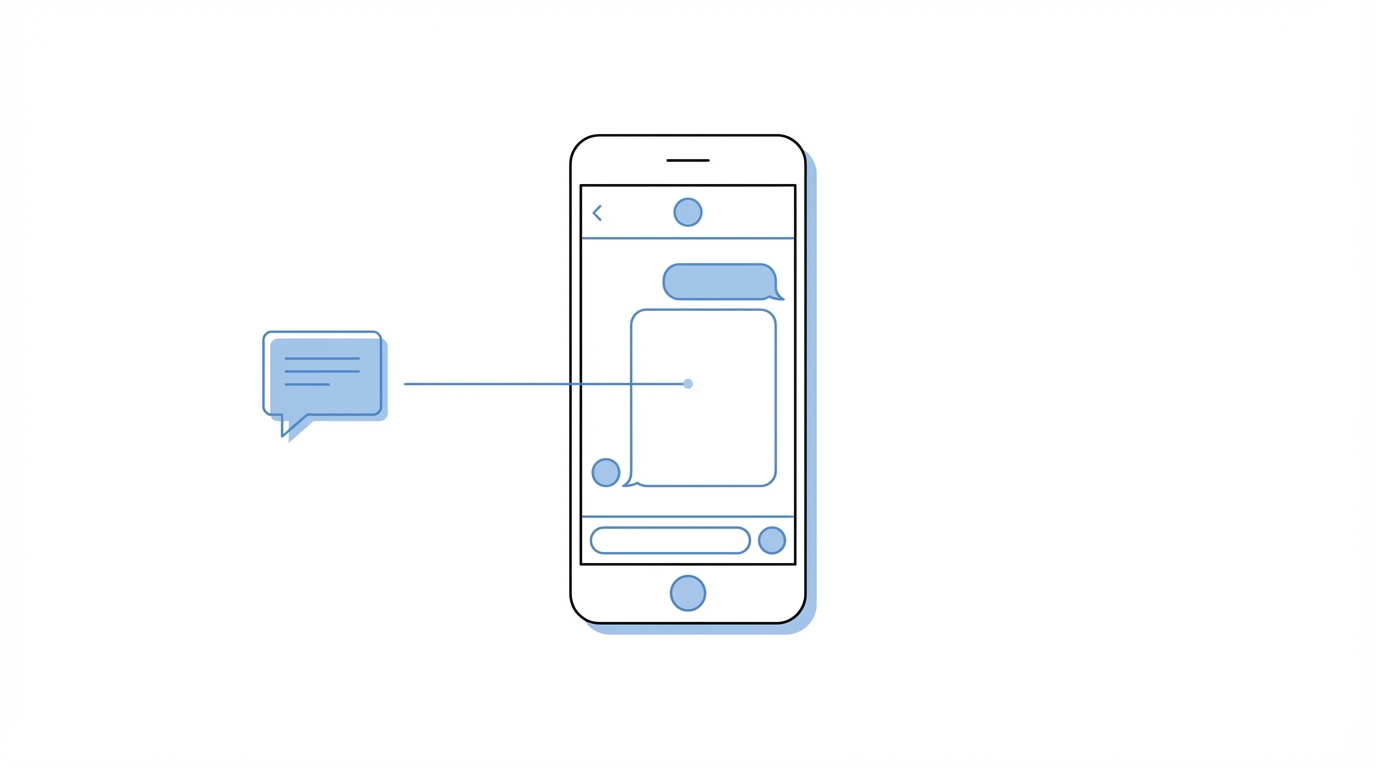
One of the most effective techniques in a Cursor AI coding tutorial is the UI-First development strategy. When you start building a new feature, do not ask the AI to write the logic, the database schema, and the interface all at once. This dilutes the context and increases the risk of hallucinations. Instead, prompt for the UI first using dummy data.
By telling Claude 3.7 to "create the UI for a budgeting chat tab using hardcoded dummy data that matches the existing app's purple color scheme," you allow the model to focus 100% on the visual components and SwiftUI structures. This ensures the polish and animations are correct before you introduce the complexity of backend integration. Only after the interface looks and feels right should you move to the next phase of "hooking up the data."
Step 3: Editing Xcode Files Directly Within Cursor
To build mobile apps with Cursor, you don't need a special plugin. You simply open your entire Xcode project folder inside the Cursor IDE. This gives the AI full visibility into your codebase, allowing it to understand how your Services, Models, and Views interact. While you will write and iterate on code in Cursor, you must keep Xcode open in the background to act as your compiler and runner.
The workflow looks like this: 1. Request a code change in Cursor chat. 2. Apply the change to your Swift files. 3. Switch back to Xcode to build and run. 4. If an error occurs, copy the error message or screenshot the red compiler warning and feed it back into Cursor for an instant fix. This feedback loop is the fastest way to debug native iOS development issues.
Step 4: Leveraging Claude 3.7 for Native Development
While models like GPT-4o are excellent generalists, Claude 3.7 for app development has proven to be superior for Swift and SwiftUI. It tends to follow Apple’s latest Human Interface Guidelines (HIG) more closely and hallucinates fewer deprecated functions. When using OpenRouter or Cursor, prioritize Claude 3.7 for your logic-heavy tasks.
To get the best results, use XML-formatted prompts. Instead of a long paragraph of text, wrap your instructions in tags like <persona>, <instructions>, and <constraints>. For example, telling Claude to "Act as a senior iOS engineer and provide a concise response in the style of a friend" often yields code that is more readable and easier to maintain than generic outputs.
Step 5: Feeding Screenshots for Precise UI Results
AI models are increasingly multi-modal, meaning their ability to "see" is just as important as their ability to "read." If your native iOS development with AI hits a wall where the UI doesn't look quite right, use visual references. You can take screenshots of premium apps from sites like Mobbin and feed them into Cursor with a prompt: "Modify my current view to match the spacing and typography of this screenshot."
This is particularly useful for empty states and loading screens. You can even use ChatGPT 4o to generate custom mascot assets and illustrations, which you can then ask Cursor to integrate into your SwiftUI views. This level of aesthetic polish is what separates a "vibe coded" weekend project from a professional native mobile app.
Step 6: Adding AI Agents and Tool Calling
The true power of building mobile apps with Cursor comes when you move beyond static interfaces and integrate agentic features. Using function calling (also known as tool calling) via OpenRouter, you can give your app the ability to "think" and execute local functions. For example, a budgeting app can have an AI agent that calls a local function to filter transactions by date range or calculate budget variances.
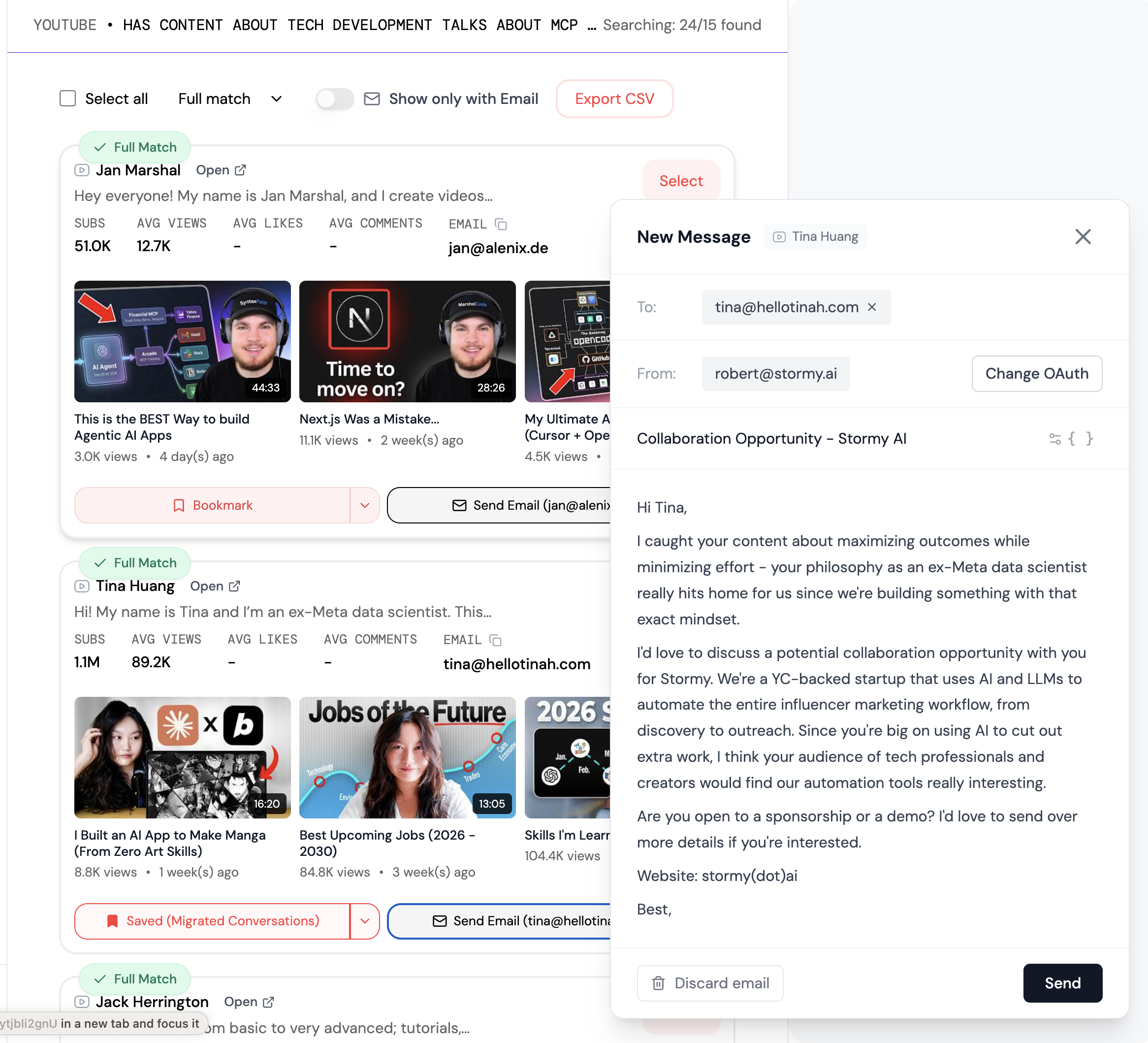
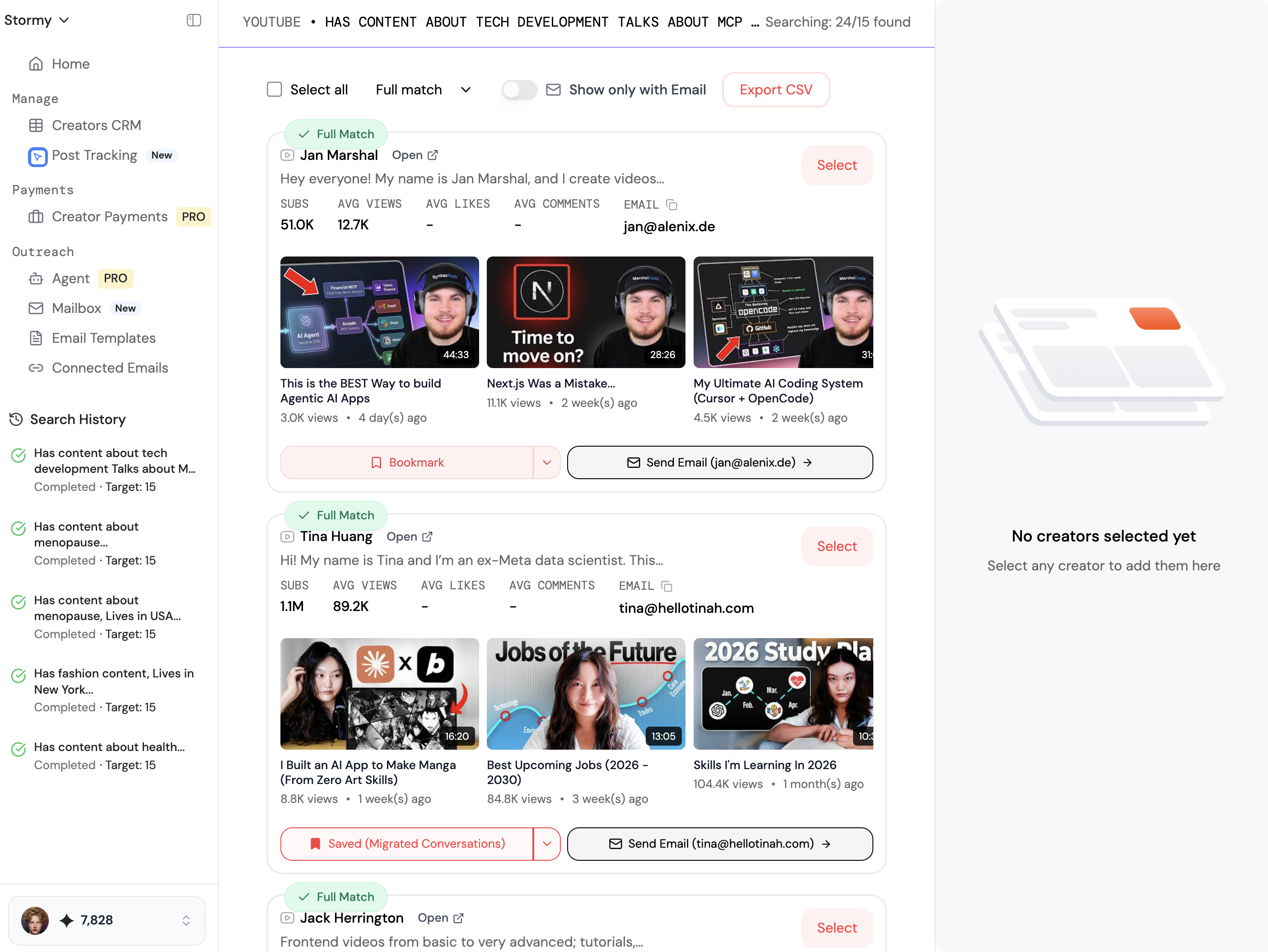
By defining these tools locally in your Swift code and passing the definitions to the LLM, the AI can decide when it needs more data to answer a user's question. This creates a highly personalized user experience where the AI acts as a genuine assistant rather than a simple chatbot. Once your app has reached this level of sophistication, marketing becomes your next hurdle. Platforms like Stormy AI can help you discover creators and influencers who can showcase these advanced AI features to a wider audience, ensuring your native iOS app gets the traction it deserves.
Step 7: Using Realistic Mock Data for Testing
To ensure your AI assisted coding workflow results in a robust app, you need realistic testing environments. Instead of generic "Item 1" and "Item 2" dummy data, ask Cursor to generate context-aware mock data. For instance, if you're building a finance app for users in a specific city, ask the AI to "generate 50 transactions featuring real restaurants and shops in Dallas, Texas for a 28-year-old male."
This makes your UI testing much more effective because you can see how real-world text lengths and data types affect your layouts. It also allows you to record much more compelling marketing demos for social media. When users see data that looks like their own lives, they are significantly more likely to convert. For those looking to scale this even further, joining communities like Startup Empire can provide additional insights into turning these AI-built apps into sustainable businesses.
Step 8: Security and Deployment Precautions
As you conclude your Cursor AI coding tutorial, it is vital to address security. AI models often default to placing API keys directly in the frontend code for simplicity. In a native iOS app, this is incredibly dangerous. Malicious actors use bots to scrape public repositories and even live apps for exposed OpenRouter or OpenAI keys. Always move your sensitive keys to a secure backend or use environment variables that are excluded from your version control.
Before you ship to the App Store, do a final manual audit of the code Cursor generated. AI is an incredible co-pilot, but it can occasionally introduce memory leaks or inefficient loops that a human developer needs to catch. Use Xcode's Instruments tool to profile your app and ensure it meets Apple’s performance standards.
Conclusion: The Future of AI-Driven Development
The ability to build mobile apps with Cursor represents a democratization of software engineering. By combining the UI-First strategy, Claude 3.7’s reasoning capabilities, and the Xcode-Cursor feedback loop, you can build native applications that were previously impossible for solo founders. The technical friction is disappearing—the only remaining variable is your creativity and persistence. Start your first project today, and remember that tools like Stormy AI are available to help you manage the influencer marketing and outreach needed to turn your native app into a global success.