In the high-velocity ecommerce landscape of 2026, standard "out-of-the-box" automation is no longer a competitive advantage—it is the bare minimum. As DTC brands scale, the limitations of native Shopify Flow actions often become a bottleneck for complex operations. Whether it is adding dynamic free gifts, adjusting tax overrides on the fly, or building multi-step order modifications, the standard blocks often fall short. To truly dominate the ecommerce back office 2026, operators must move beyond the basics and harness the power of direct Shopify GraphQL mutations via the Admin API request block.
This transition turns a simple automation tool into a programmable employee. While manual order adjustments consume hours of support time, an AI ecommerce employee like Stormy AI can monitor these advanced workflows in the background, keeping your Shopify store running autonomously while you focus on growth. In this guide, we will walk through the exact steps to bypass native limitations and use the Shopify Admin API to build a sophisticated order editing engine.
The Power of the Admin API Request Block
 0:32
0:32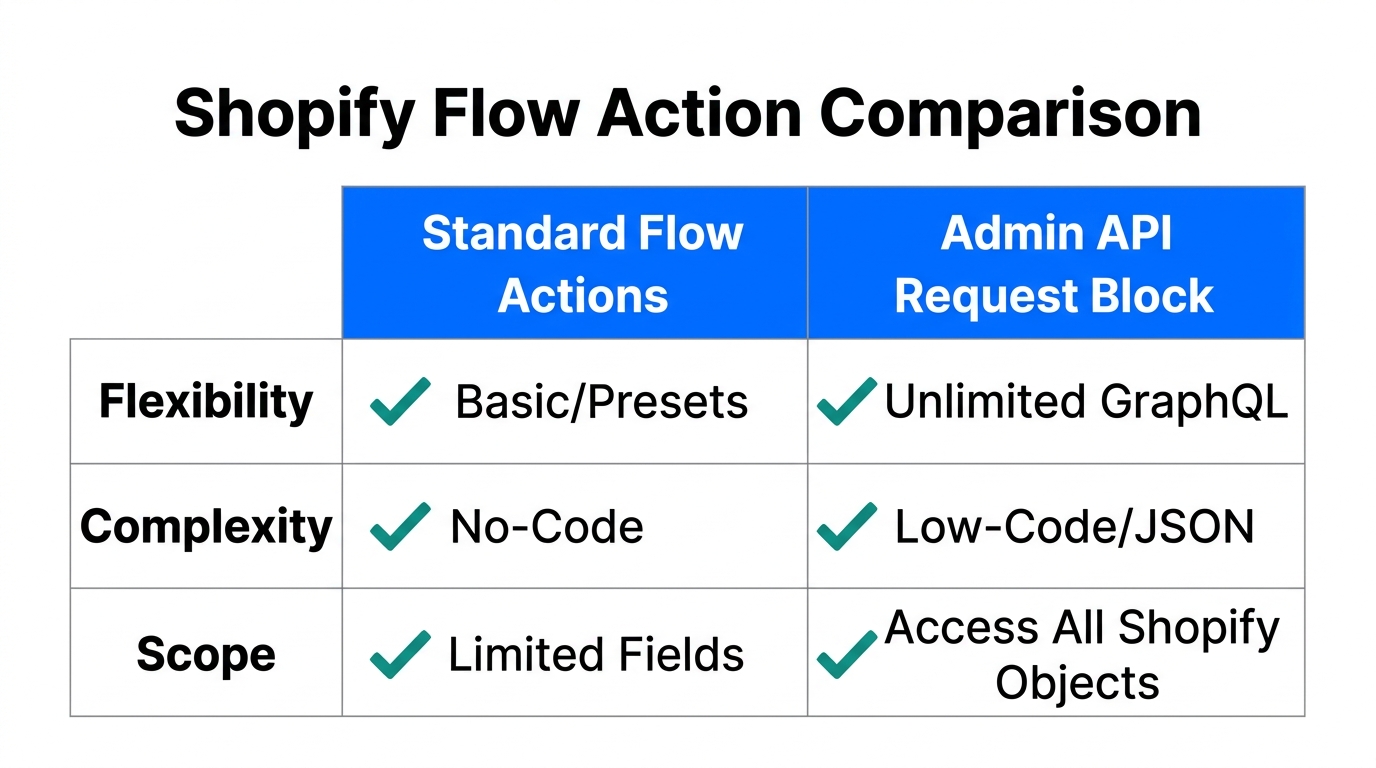
The Shopify Admin API request block is the "skeleton key" of Shopify Flow. While Shopify provides standard actions like "Add Order Tag" or "Archive Order," these are just pre-packaged versions of API calls. By using the "Send Admin API Request" action, you gain access to the entire GraphQL schema, allowing you to perform actions that are not yet available as standard buttons.
For high-volume stores, this is critical. If you were to add a gift and a discount as separate, non-API-batched actions, the customer might receive multiple "Order Updated" emails in seconds. By using the orderEditBegin and orderEditCommit lifecycle, you ensure the customer only sees the final, polished result. This is exactly the kind of workflow Stormy AI excels at managing, as it can track these API calls across thousands of orders without breaking a sweat.
"The move from basic Flow actions to GraphQL mutations is the difference between being a store user and a store architect in 2026."
| Feature | Native Flow Actions | GraphQL Admin API Block |
|---|---|---|
| Complexity | Low (Pre-built) | High (Customizable) |
| Efficiency | Single-step only | Multi-step Batching |
| Flexibility | Limited to Shopify's UI | Access to full Schema |
| Reliability | High | High (with Debugging) |
Step 1: Extracting the Variant ID and Prepping Data
1:15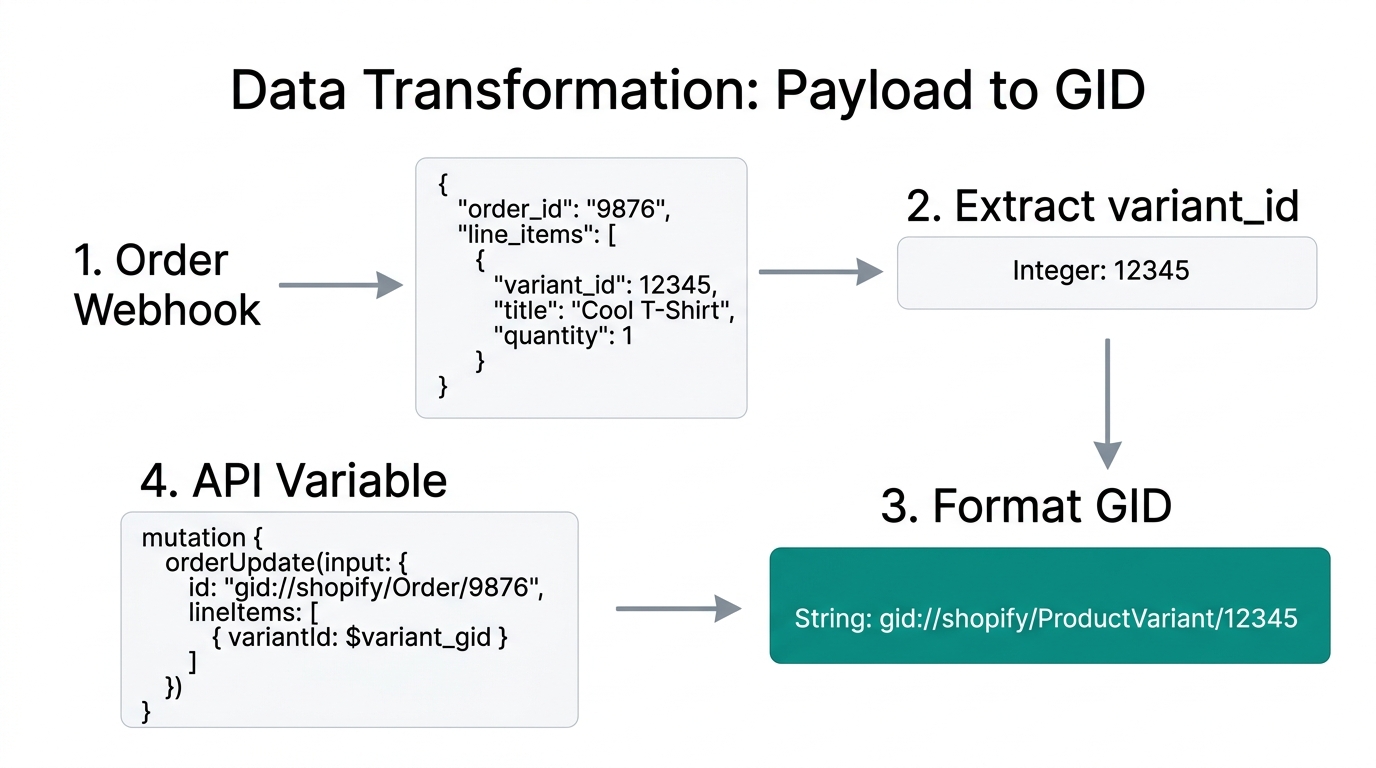
Before jumping into the Shopify Flow tutorial, you need the raw data. In GraphQL, you cannot simply use a product name; you need the Global Unique Identifier (GID). For adding items like a free welcome gift—a common strategy discussed by experts like Yann at codingwithyann.com—you must find the Variant ID.
How to Find the GID Quickly
Go to your Shopify admin, open the product you want to gift, and add .js to the end of the URL. This will render the product's JSON data. Locate the id under the variants array. This number is your starting point. However, Shopify GraphQL mutations require a specific format: gid://shopify/ProductVariant/YOUR_ID_HERE. Keep this string ready; you will need it for the mutation payload.
If you find this manual data gathering tedious, remember that Stormy AI can automatically scrape your catalog to find these IDs and store them in a creator CRM or inventory spreadsheet for use in your automations.
The Order Edit Lifecycle: Begin, Edit, Commit
4:43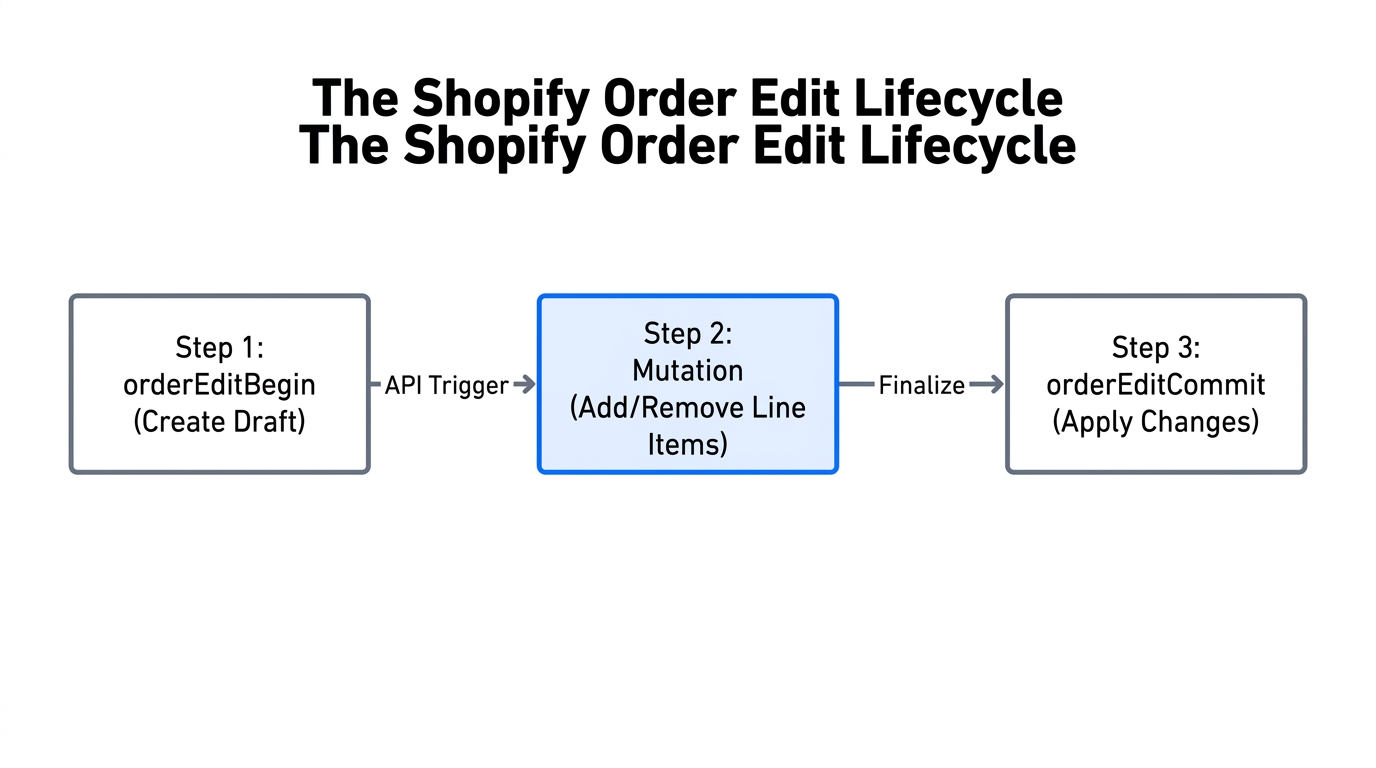
Most beginners fail because they try to edit an order directly. In Shopify, orders are semi-immutable. To change them, you must follow a specific three-stage lifecycle via the Shopify Admin API:
- Order Edit Begin: You tell Shopify you want to start a "draft" edit. This generates a calculated order ID.
- Order Edit Actions: You perform your mutations (adding variants, removing items, adding discounts) using that calculated ID.
- Order Edit Commit: You finalize the changes. Only at this point is the real order updated and the customer notified.
"Never edit a live order directly. Always use the Begin/Commit lifecycle to ensure your inventory and financial reporting remain accurate."
Building the Advanced Flow Playbook
Let's build a workflow that adds a free "Welcome Gift" (like a coffee scoop) to a customer's very first order. This is a classic Shopify order automation use case that enhances LTV from day one.
Step 1: Set the Trigger and Conditions
Open Shopify Flow and start with the Order Created trigger. Next, add a condition to check if this is truly a new customer. In the variables, look for order / customer / numberOfOrders. Set the condition to Equal to 1. This ensures only first-time buyers get the gift.
Step 2: Initiate the Edit with GraphQL
Add the action "Send Admin API Request." We will use the orderEditBegin mutation. You will need to pass the id of the order that triggered the flow. This step is crucial because it returns the calculated order ID—a temporary object that holds your changes in limbo.
Step 3: Add the Variant
Add another "Send Admin API Request." This time, use orderEditAddVariant.
Crucial Note: When filling the id field, do NOT use the original order ID. Use the calculatedOrder.id from the previous step. Input your Variant GID (e.g., gid://shopify/ProductVariant/123456789) and set the quantity to 1.
Step 4: Apply a 100% Discount
To make the gift truly free, you need one more API call: orderEditAddLineItemDiscount. Again, use the calculatedOrder.id and the calculatedLineItem.id from the previous step. Set the percentageValue to 100. This is significantly more flexible than native discounts because it allows you to add custom descriptions like "Welcome Gift!" that appear on the customer's invoice.
Step 5: Commit the Changes
Finally, use the orderEditCommit mutation. Set notifyCustomer to true so they receive an updated email showing their new free item. This level of professional communication is what separates top-tier brands from amateurs.
Debugging Failed API Calls: The 'Recent Runs' Dashboard
13:00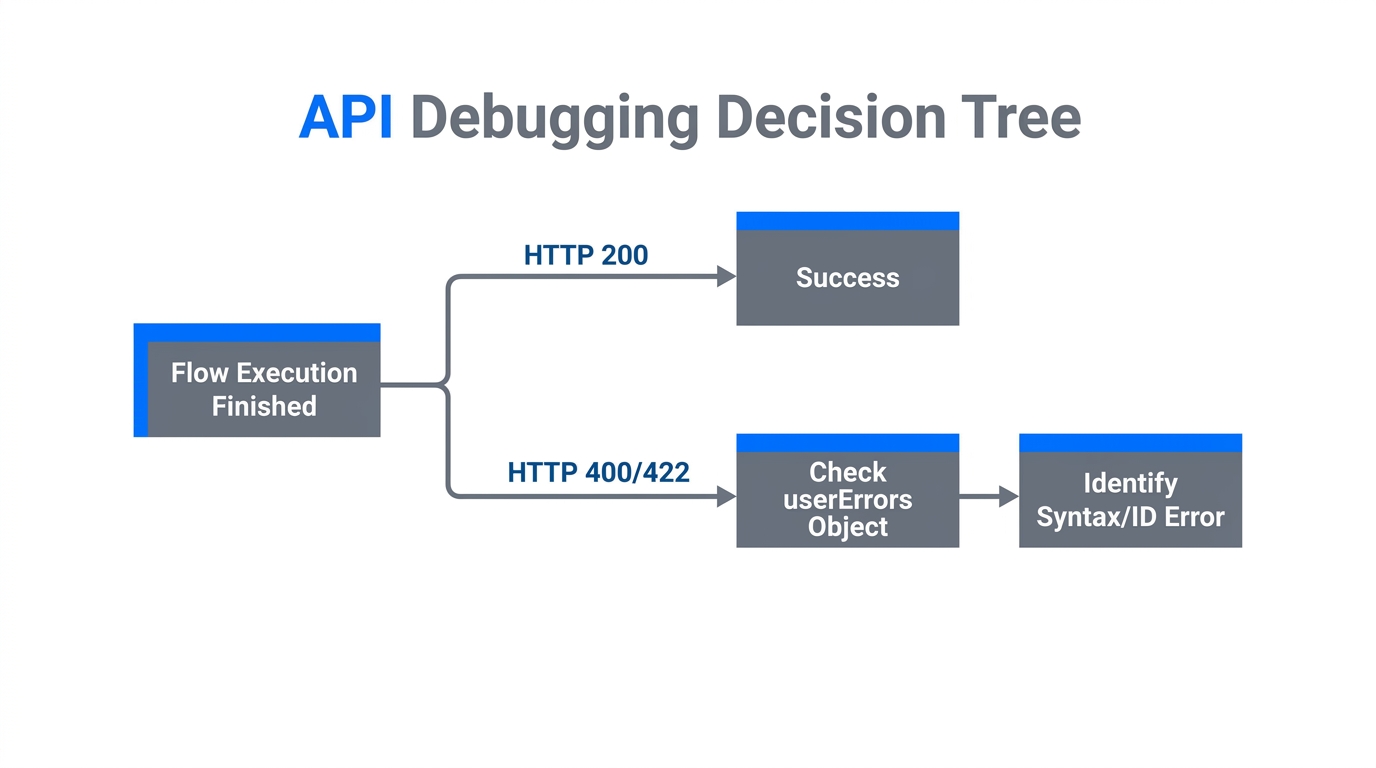
Even the best Shopify Flow tutorial cannot account for every edge case. Sometimes a variant is out of stock, or a customer's address is invalid, causing the GraphQL mutation to fail. In 2026, you shouldn't be manually checking orders for errors.
If a flow fails, navigate to the Recent Runs dashboard in the Shopify Flow app. Here, you can see the exact JSON payload sent to the Shopify Admin API and the error message returned. Common errors include INSUFFICIENT_STOCK or INVALID_ID. The beauty of this dashboard is the Retry button. Once you fix the underlying issue (like adding stock), you can re-run the exact same data without making the customer place a new order.
"Debugging is where the real learning happens. Use the Recent Runs log to understand how Shopify thinks about your data."
Scaling Back-Office Operations in 2026
While mastering GraphQL and Flow is a superpower, as you scale to thousands of orders per day, even managing the automations becomes a job. This is where the concept of the "AI Ecommerce Employee" becomes reality. Stormy AI acts as the supervisor for these workflows.
- Inventory Monitoring: While Flow adds gifts, Stormy AI monitors Shopify inventory levels across all locations and alerts you before a gift item runs out.
- Ad Spend Alignment: Stormy pulls spend from Meta Ads Manager and Google Ads to ensure the "Free Gift" campaign is actually profitable based on real-time ROAS and TACOS.
- Customer Support Integration: If a customer asks where their gift is, Stormy AI can check the Flow logs, see the status in Gorgias, and draft a reply explaining the shipment status.
By combining the technical precision of Shopify GraphQL mutations with the autonomous capabilities of an AI agent, you move from a state of constant "firefighting" to a streamlined, scalable operation. You are no longer just running a store; you are managing a fleet of intelligent systems.
Conclusion: Your Next Steps
The ecommerce back office 2026 demands technical agility. By moving your complex order logic into the Shopify Admin API block within Flow, you unlock a level of customization that apps simply cannot match. Start small: try adding a simple tag via GraphQL, then move to the Begin/Commit lifecycle for order edits.
As your workflows grow more complex, don't let the administrative burden slow you down. Let an AI teammate like Stormy AI handle the monitoring, reporting, and follow-ups. Whether you are scaling on TikTok Shop or dominating Shopify, the future belongs to those who automate the boring parts so they can focus on the creative ones.